
How to Make a Photo Sing a Suno Song With Your Own Audio
A finished Suno song can be the audio input for a singing photo. Export the song, select a short vocal section, and upload that audio alongside a portrait. Start with a 10–15 second vocal passage. This guide uses Suno's download documentation and LipSyncX's upload controls as of October 11, 2026.
This workflow connects Suno's documented download options with LipSyncX's uploaded-audio controls, checked on October 11, 2026. It is a preparation and generation guide, not a measured comparison of singing models.
Export audio from Suno before opening the photo tool
In your Suno Library or Workspace, open the song's three-dot menu and choose Download. Save an audio file to your device; a share link is not an uploaded MP3.
Suno's current format guide lists MP3 downloads on web and mobile, and WAV for Pro and Premier on the web. Download availability also depends on the account's current allowance. Check the controls on your account rather than assuming unlimited exports.
If you plan to monetize the video, check Suno's current download and usage policy and paid-plan rights guidance for that download. Permission to animate the portrait is a separate requirement.
Choose a vocal section for the first attempt
A long instrumental introduction gives you little information about singing lip sync. Start with a 10–15 second section where a single lead vocal is easy to hear. This is a practical test length, not a claim that the tool only accepts short songs.
| Section | What it helps you check |
|---|---|
| Clear chorus line | Whether mouth movement follows audible lyrics |
| Held note | Whether the face remains stable during a longer vowel |
| Brief pause | What happens when the vocal stops |
| Fast phrase | Whether timing looks plausible as lyrics speed up |
Use the audio trimmer if you want to isolate the section. Play the export again so you do not cut through the first word or final syllable.
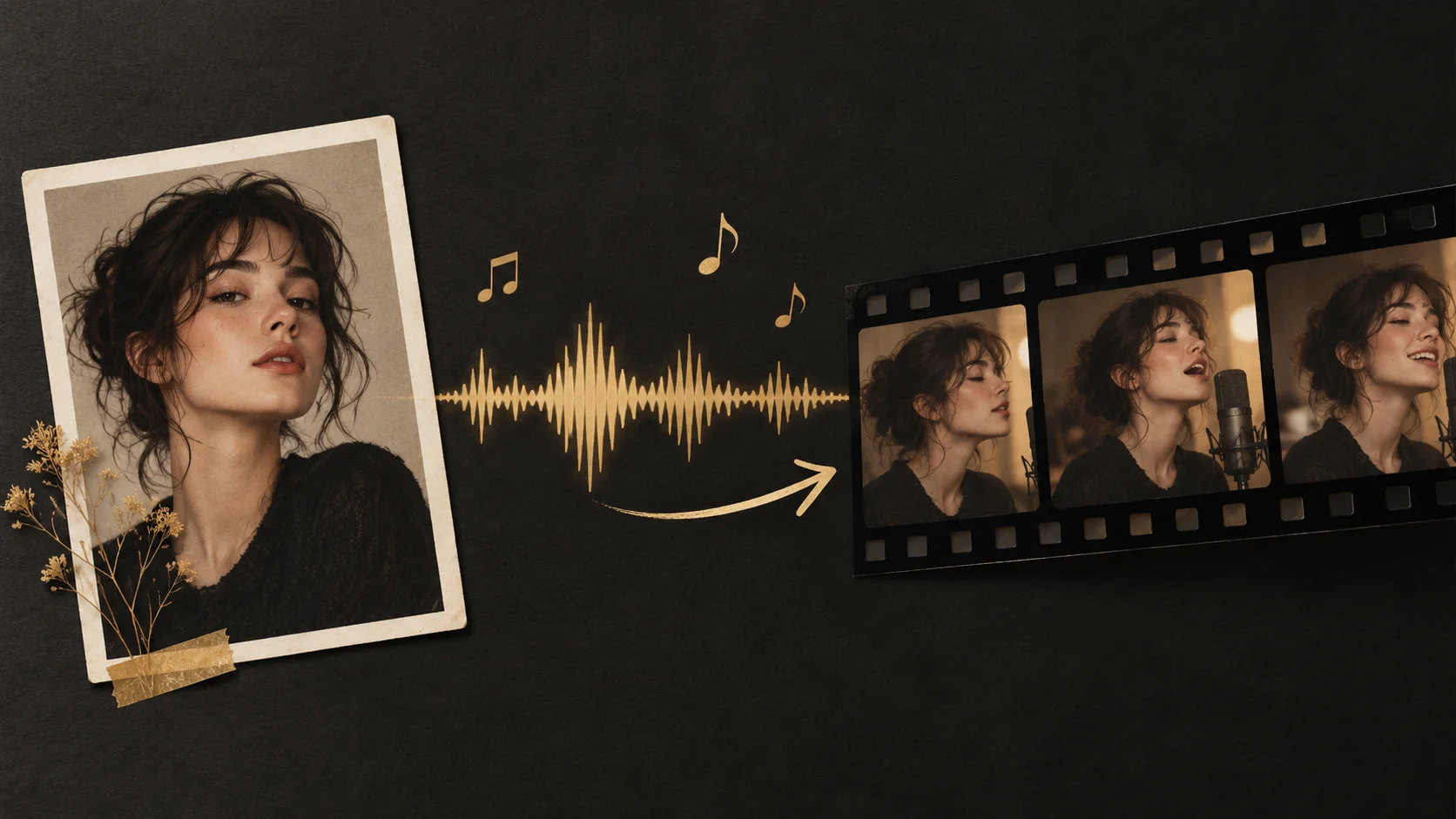
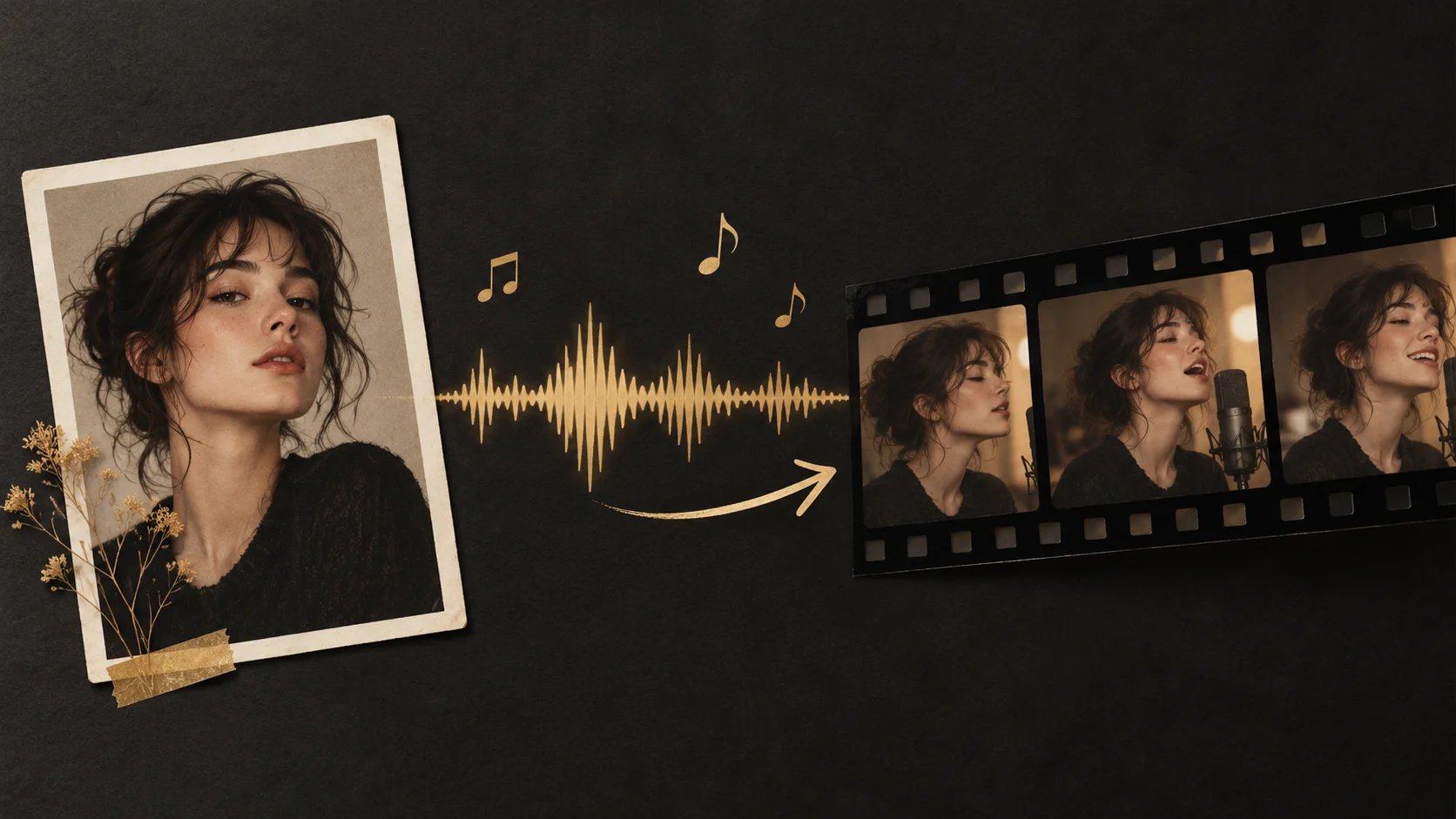
Illustration of a singer portrait paired with a short vocal waveform and musical notes; not a benchmark or finished LipSyncX output
Upload the song and portrait to LipSyncX
- Open Make Photo Sing and follow its creation link.
- Upload a clear JPG or PNG portrait or choose a template. Keep the mouth visible.
- Select Audio and upload your exported song section. Replace any default demo recording.
- Preview the uploaded audio. Confirm it is your Suno song and the intended vocal passage.
- Choose a model and resolution, then check the estimated credit total before generating.
- Review the completed video with sound. Keep the input file and note the settings if you want to compare another attempt.
The inspected uploaded-audio panel supports MP3, WAV and M4A and lists a 30MB / 10-minute ceiling. It recommends audio under 1 minute for lip-sync quality. Check the selected model's duration limits too.
LipSyncX handles the photo-and-audio generation step. Suno supplies the song file. Uploading a finished song does not make LipSyncX a Suno account integration.
Do you need a vocal-only stem?
Try the mixed song if that is the file you already have. If the instrumental track overwhelms the vocal or the mouth moves oddly during an instrumental passage, a vocal-only stem is worth a separate attempt.
When a stem is available, compare the same time range, portrait, model and resolution. A vocal-only attempt is a diagnostic comparison, not a guaranteed improvement. Keep the original mix for the final soundtrack if you later combine it with a matching-length result in a video editor.
Do not describe one song's result as proof that every song, accent or tempo will behave identically. In particular, inspect harmonies, backing vocals and quiet lead vocals rather than assuming automatic speaker selection.
FAQ
Can I paste a Suno share link instead?
This guide uses the Audio file upload. Download a supported audio file; it does not depend on importing a Suno URL.
Do I need to buy another subscription for LipSyncX?
Current LipSyncX pricing offers one-time credit packs without a mandatory subscription. The generation quote depends on your model, duration and resolution.
Can I start with a full song?
Confirm the file and model limits first. A short vocal test lets you inspect the result before spending credits on a longer attempt.
Turn the chorus into your first singing photo
Export one short vocal section, then open Make Photo Sing. Upload the portrait and audio, check the estimate, and keep the first result for comparison.