
Add an AI Presenter to an Existing Course: MP4, Edit, Then Upload to Rise

An AI presenter clip often needs another editing pass: trim a pause, add a diagram, or cut to a screen recording before it belongs in a course. Exporting a reusable MP4 lets you make those changes in your usual editor and keep the existing course structure. For this October 2026 workflow, start with a 5–10 second test.
This October 2026 guide separates the three jobs: LipSyncX makes the presenter asset, an editor assembles the lesson, and Rise 360 hosts the finished video. The original teacher clip is generated media; the Rise steps below follow Articulate's current documentation, rather than claiming a tested native integration or a signed-in Rise project.
1. Decide what the presenter contributes
Give the presenter a narrow job: introduce the task or explain what to watch for. Save detailed process footage for the main lesson. This example uses the same original fictional teacher as our lesson-intro guide.

Plan the edit before generating. For example, use a 10-second presenter introduction, a 20-second screen demonstration, and a 5-second assignment card. Those are planning durations, not measured learning outcomes or product limits.
2. Generate the presenter clip from final audio
Open the tutorial video workbench, select an authorized teacher image, and upload the final narration in Audio mode. A 5–10 second test helps check unfamiliar terms and mouth movement before making a longer clip.
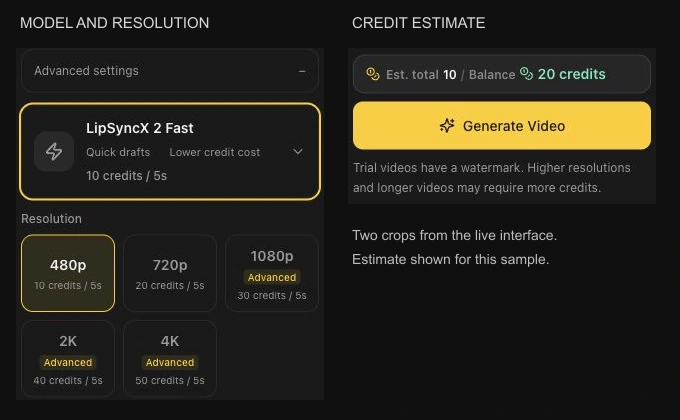
Check the selected model, resolution, and estimated credits. Our teacher samples use LipSyncX 2 Fast at 480p. Do not interpret a screenshot's quote as a permanent rate; consult current pricing. Changing the spoken content generally requires another generation and may consume credits.
Create the short presenter segment, then inspect the entire result before downloading it. The original materials-reminder MP4 is an example source asset, not a complete course.
3. Edit the MP4 beside your actual teaching material
Import the presenter MP4 into your chosen video editor. Put the screen recording or demonstration after the opening, then add the assignment card. Keep the narration audible; if you use music, lower it under speech and check the result with headphones.
For Camtasia on Windows, TechSmith documents MP4 among supported import formats. This is a file-based handoff, not a LipSyncX connector. Save the editor project and all source media so a later wording change does not require rebuilding the lesson from scratch.
| Layer | What belongs there |
|---|---|
| Presenter | Short introduction or instruction |
| Main visual | Real demonstration, slide, or screen recording |
| Labels | Key terms, steps, source links, and assignment location |
| Audio | One intelligible narration mix; avoid duplicated voices |
If a chart changes but the spoken facts remain correct, change the chart in your editor. If the voice says an obsolete date or instruction, replace the narration and regenerate the affected presenter segment. Cropping a mouth error does not fix a wrong statement.
4. Export a course-ready video file
Choose an MP4 export compatible with your course platform. As checked in October 2026, Articulate recommends 16:9 video, up to 1920 × 1080, a bitrate of 10 Mbps or less, and a file below 5 GB for best results. Its documentation explains automatic conversion to H.264 video and AAC audio in MP4, with a preserve-quality option.
These are Rise recommendations, not a claim that our 480p source becomes native 1080p detail. Exporting at a larger frame size cannot invent sharpness that was absent in the generated clip. Check your actual file on desktop and mobile before upload.
5. Upload through a Rise video block
Follow the current Rise video instructions: open the course, choose a Video block from the shortcuts or Multimedia library, open its Content controls, choose Replace, and upload the finished video. Interface wording may change; use the linked documentation if your account differs.
Review captions and accessibility settings in the course. Check the result in preview, including the transition from the video to the next lesson activity. This guide does not claim that an authenticated upload to a particular Rise account was performed.
FAQ
Does LipSyncX export SCORM or track course completion?
This workflow exports a video asset. Use your authoring tool and LMS for packaging, assessments, completion rules, and reporting.
Can I join several presenter clips before uploading?
Yes. Assemble the MP4s in your editor, review transitions and audio levels, then upload the final export through the course platform's supported workflow.
Can I correct one label without regenerating the presenter?
An editor can change a separate text or graphic layer. If the spoken information changes, replace the voiceover and render that presenter segment again.
See e-learning workflows and craft-course introductions. Make one presenter MP4 for your existing course.