Create Lesson Intros for a Craft Course With Your Own Audio
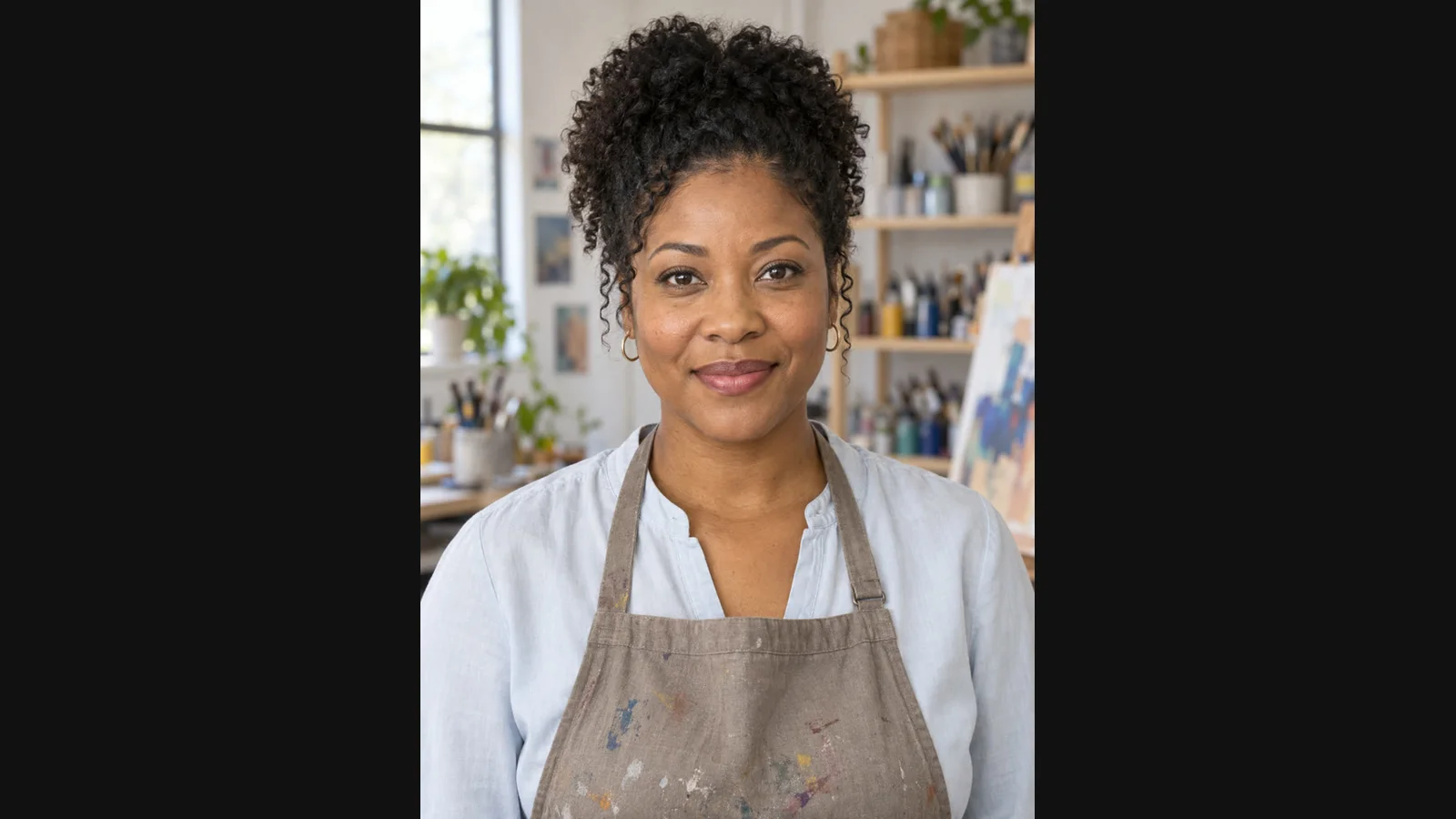
Your craft lesson needs a friendly opening, but the important part is still the close-up of your hands doing the work. A teacher portrait and a short recording can create the introduction while your real demonstration carries the instruction. For this October 2026 workflow, start with a 5–10 second test.
This October 2026 LipSyncX walkthrough builds three small presenter assets: welcome, materials reminder, and assignment prompt. It uses an original fictional teacher and new synthetic narration. You can replace them with an authorized instructor photograph and your own voice, without recording a new on-camera introduction for every lesson.
1. Separate the presenter from the demonstration
Plan the lesson in three parts. This is an example structure, not a required course length.
| Part | Example job | Source |
|---|---|---|
| 10-second opening | State today's exercise and needed materials | Talking teacher clip |
| Main demonstration | Show hand position, tools, and each physical step | Your real overhead footage |
| 10-second closing | Explain the assignment and where to ask questions | Talking teacher clip |
Do not ask a talking portrait to demonstrate stitching, cutting, or tool safety. Photographing a teacher does not generate a reliable close-up of a real craft technique. Film the process yourself and check it against your written instructions.
2. Pick one clear teacher image
Use a front-facing portrait with the mouth visible and enough room above the head. Keep the same image across the series so a new lesson does not unexpectedly change the instructor's appearance.
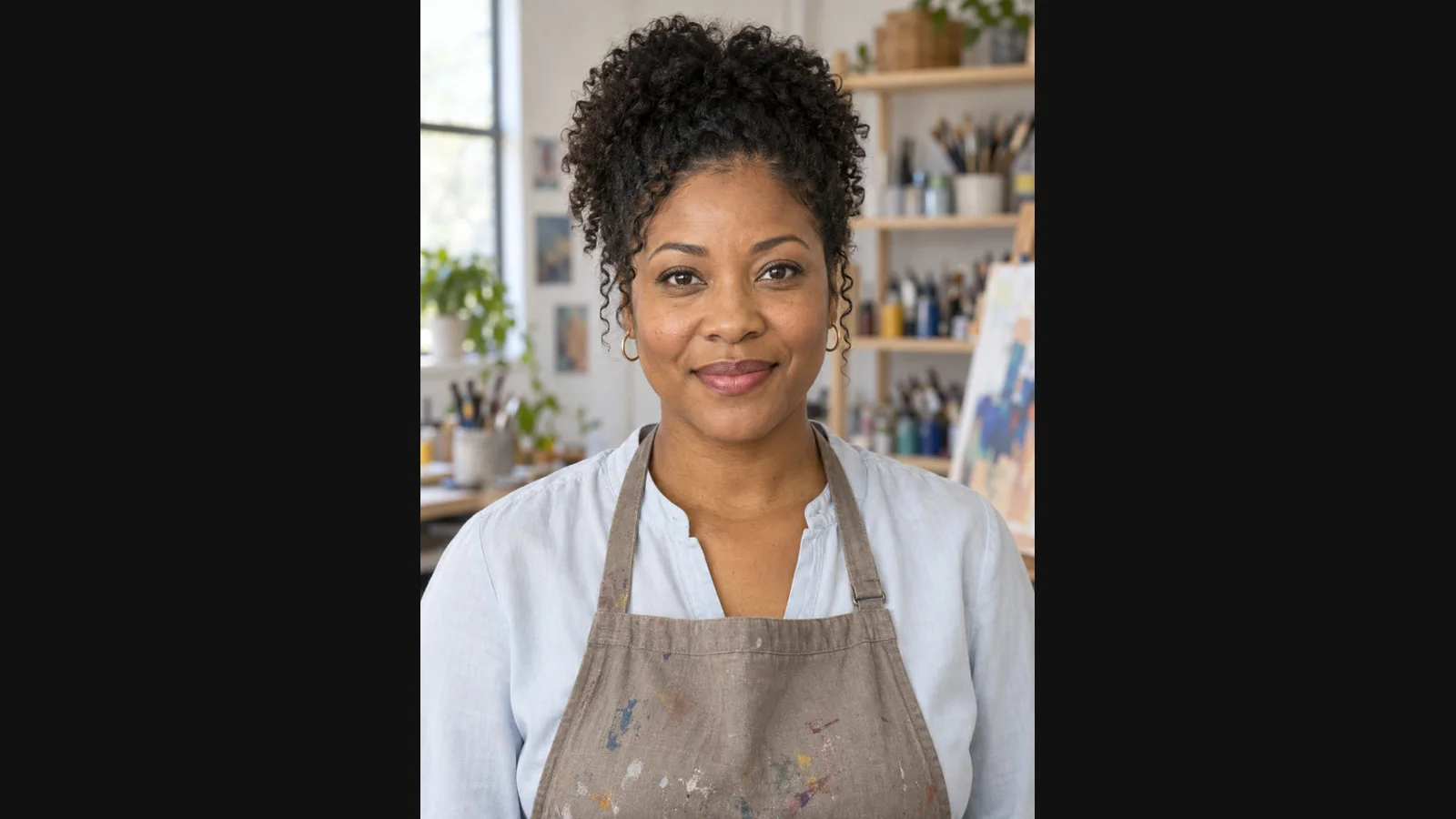
The sample portrait is LipSyncX-owned fictional artwork, not a customer's photograph. The tutorial video workbench offers teacher presets; replace a preset when you want your own authorized instructor.
3. Record one purpose per audio file
Avoid reading your whole course into a single file. Separate recordings are easier to correct and place in the edit. Here are three original templates for a paper-pattern exercise:
Welcome: Welcome to our paper pattern workshop. Today we will turn one simple shape into a repeating design. Keep your paper, pencil, and ruler nearby.
Materials: Before we begin, place your paper on a clear table. Check your pencil and ruler, then pause here until your materials are ready.
Assignment: Now make your own repeating pattern. Photograph the finished page and use the course's submission instructions. Bring one question to our next lesson.
Use your actual assignment location in the surrounding course page. Avoid inventing a support link or assuming the tool publishes directly to LINE, a membership site, or your LMS.
4. Upload the finished voiceover
Choose Audio in LipSyncX and upload the recording for one lesson part. Replay it for pronunciation and pacing. Remove unwanted silence with the audio trimmer, keeping intentional pauses where learners need to stop.
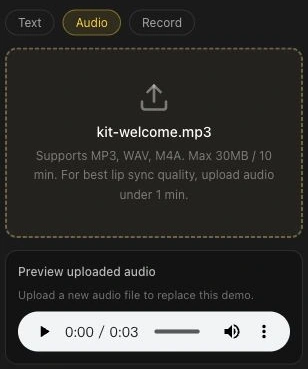
The screenshot is the shared upload interface rather than this teacher's job history. To reproduce the new example, use the teacher image above and the original materials recording.
5. Test a sentence and inspect the quote
Start with a 5–10 second section, especially if the lesson contains specialized terms. Check the selected model, resolution, and credit estimate before generating. Our new teacher samples use LipSyncX 2 Fast at 480p. Consult current pricing for your own batch.
Create the first lesson introduction. Check the finished mouth movement, face stability, and last word before repeating the workflow for other modules. Revised narration needs a new render; leave room for corrections.
Watch the materials reminder and assignment prompt. The existing original drawing-course welcome shows the same teacher in a different lesson context; do not present it as a paper-pattern introduction.
6. Assemble the lesson in your editor
Import the presenter MP4, the actual overhead demonstration, and your closing MP4. Cut from the introduction to the real materials as soon as the opening has done its job. Add labels and captions in the editor, then check the exercise number, submission location, and any safety notes.
Keep a simple naming scheme such as lesson-03-intro-v1 and lesson-03-assignment-v1. Save the source audio alongside each export so you can replace one instruction without rerecording the entire course.
FAQ
Can I use my own voice?
Yes. Audio mode accepts your finished narration. It preserves that recording as the input instead of generating a new voice from text.
Does LipSyncX make the complete hands-on lesson?
This workflow creates presenter clips. Record the real craft demonstration separately, then assemble the final lesson in an editor.
How do I add the result to existing course software?
Export the MP4, edit it if necessary, and upload through your course platform's supported video workflow. See the MP4-to-course guide for a documented Rise example.
Explore e-learning presenter workflows, then make one short introduction with your teacher image and voice.