
Make Your Childhood Toy Give a Party Speech With Your Own Audio
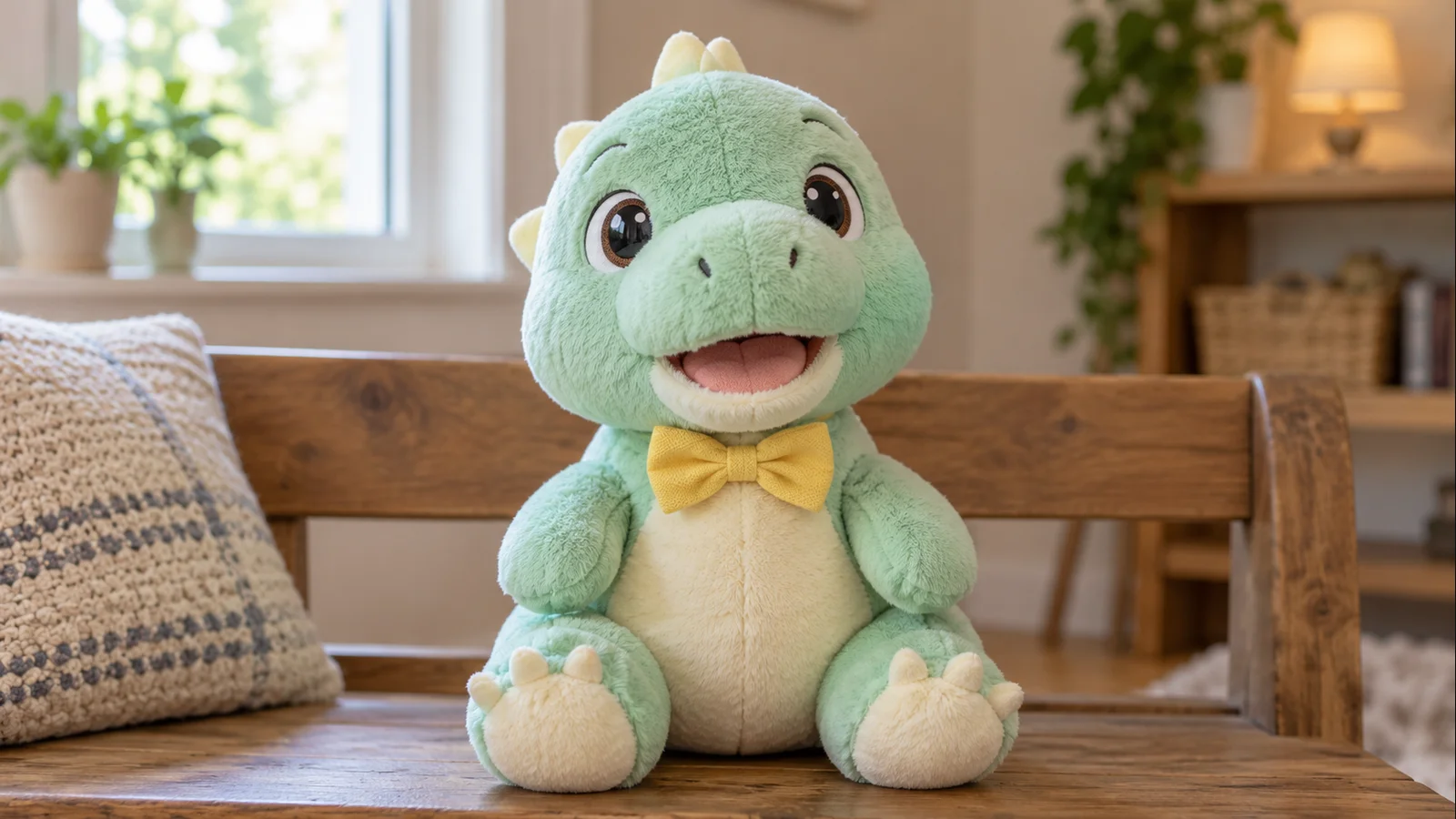
A childhood toy can deliver the opening line of a party film: the same familiar face, now speaking a message you recorded. To make a stuffed animal talk in a video, use a clear photograph and a finished voiceover, then test the mouth before making a longer speech. For this October 2026 workflow, start with a 5–10 second test.
This October 2026 walkthrough uses an original mint dinosaur and new synthetic narration in LipSyncX. No family photographs or customer recordings appear in the example. The workflow also fits a quinceañera montage: write from the toy's point of view, keep the memories specific, and leave space for the real celebration.
1. Photograph the toy's face, not the whole room
Sit the toy upright near a window. Put the camera at its eye level and leave its mouth unobstructed. One face, even light, and a simple background make a useful first test. Avoid a tiny toy on the far side of a sofa.
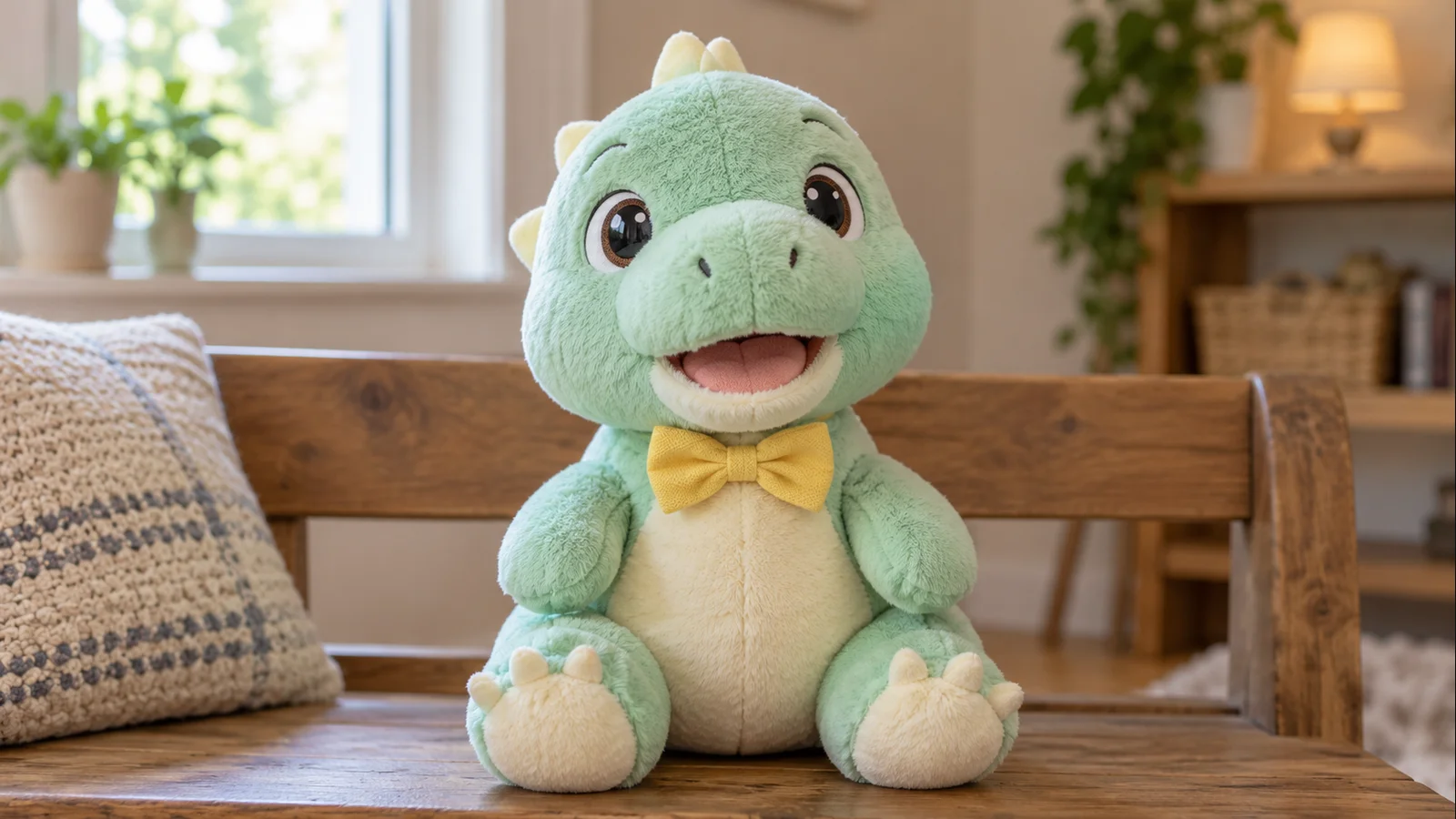
Our dinosaur has a defined mouth opening. A toy with only a stitched line, a long snout, or no recognizable mouth may animate less convincingly. Use a 5–10 second test before preparing the entire message; a sample that works for this dinosaur does not guarantee every plush design will work.
2. Write a message the toy could tell
Use three beats: a shared memory, the occasion, and a warm wish. Choose a memory your family is comfortable sharing. A quinceañera speech might recall bedtime stories and then celebrate growing up, without making up events or using a child's full name in a public example.
I have been beside you through small adventures and big dreams. Today is another beautiful beginning. Keep your curiosity, keep your kindness, and save a little room for your oldest friend. Happy celebration.
Record in a quiet room, or export a finished synthetic voiceover. A short adult narration is enough to test the effect. Add party music later so it does not obscure the consonants you need to judge.
3. Upload the image and the finished recording
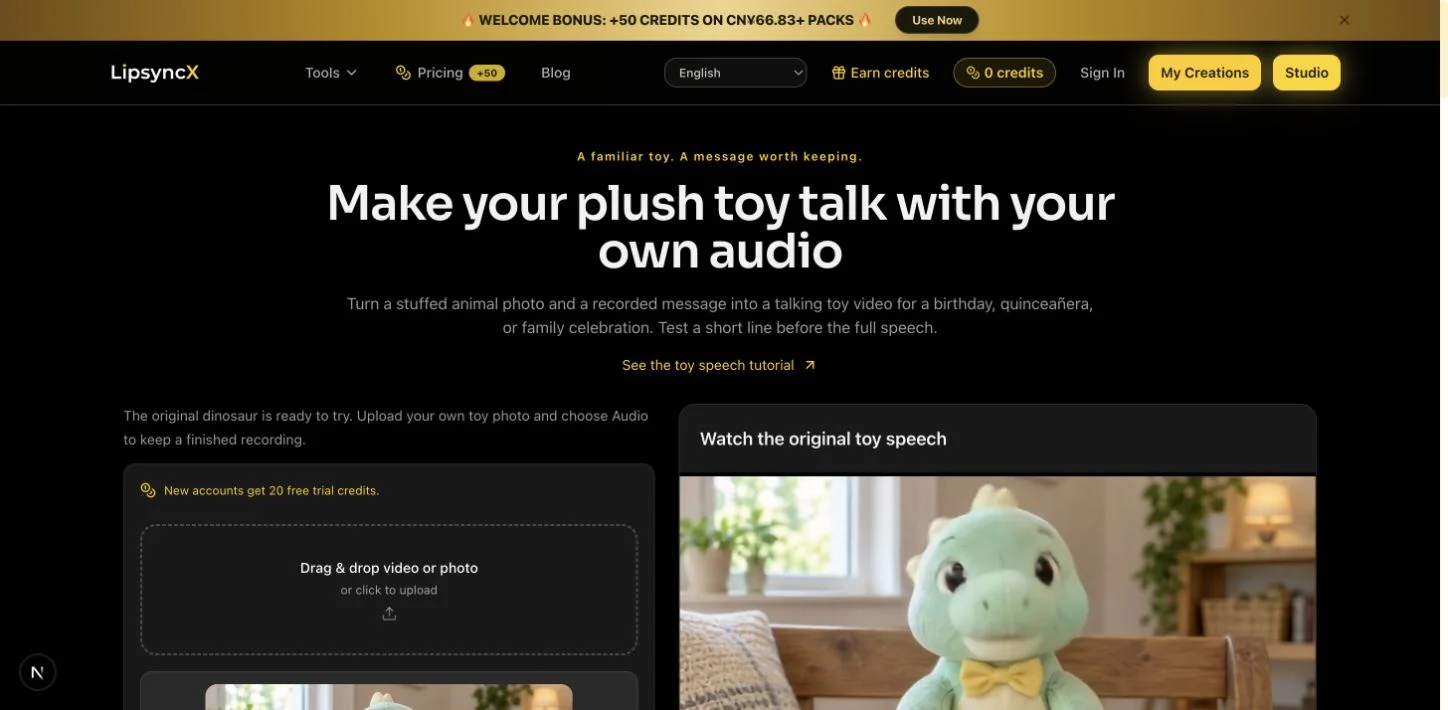
Open the talking plush toy workbench. Replace the sample dinosaur with your own photo. Choose Audio, upload your file, and replay it from the first word to the last. If you need to cut long silence, use the audio trimmer before uploading the final version.
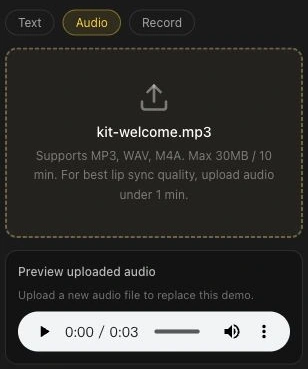
This screenshot documents the real shared Audio controls using the earlier fox example. It is not a dinosaur render receipt. Start with the supplied original dinosaur audio if you want to compare the same input and output.
4. Check the quote, then render one short test
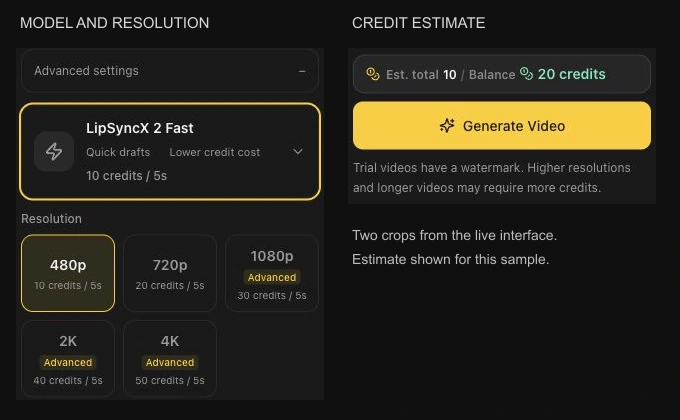
In Advanced settings, choose an image-and-audio lip-sync model. Our original sample uses LipSyncX 2 Fast at 480p. Read the credit estimate for your actual audio before generating; duration, model, and resolution affect it. Check current pricing when planning several attempts.
Test one sentence with your toy before recording a long emotional speech. A new render can consume credits, including one made after a script correction.
5. Watch the result with sound and in silence
Play the original talking dinosaur sample. This is an actual generated result with a fictional toy and synthetic voice, not a customer party video.
Check whether the mouth follows the words, whether the fabric around the muzzle distorts, and whether the last word is complete. Watch once without sound to spot distracting movement. If the mouth looks wrong, improve the photo or try a shorter line before scaling up.
6. Place the clip in the celebration film
Download the finished MP4, then import it into your usual editor. Put the toy's greeting before the photo montage; lower the music under the voice and leave a brief pause after the final sentence. The editor handles titles, family photos, transitions, and music. LipSyncX supplies the speaking character clip.
For a venue screening, test the exported file on the actual playback equipment. Keep a local copy ready; do not depend on loading an editing website during the event.
FAQ
Can I keep the voice I already recorded?
Yes. Use Audio mode with your finished recording. Text mode creates a separate narration and is not needed when you want to retain an existing performance.
Will a sewn smile animate like a human mouth?
Not necessarily. Mouth shape and framing matter. Test a few seconds of the real toy photo before generating the complete speech.
Can I use the same method for an illustrated character?
Yes; see the character lip-sync tool. The company mascot walkthrough explains a similar image-and-audio setup.