
How to Make a Company Mascot Talk With Your Own Audio
To make a company mascot talk, start with a character image, a finished audio file, and a lip-sync tool that accepts both. This workflow was checked in the live LipSyncX interface on October 22, 2026. Make 1 short welcome clip before expanding it into an employee onboarding series.
We use an original fox character, new synthetic narration, real product screenshots, and a short rendered example. You can follow the same steps with your own artwork and recording, then reuse the character for employee onboarding or department introductions.
Start with a welcome message you can actually reuse
Our fictional guide is Kit. Its first job is a simple employee greeting:
Hi, I am Kit. Welcome to the team. Let us get you started.
This is a demonstration script, not a real company's employee material. The fox is original LipSyncX artwork; the sample narration is synthetic. It does not use customer uploads or a cloned customer voice.
Here is the generated clip, made with the Fast model used in LipSyncX. It shows one possible result; other artwork and settings can behave differently.
Play the original Kit welcome demo with sound
The goal of this first test is modest: can viewers understand the sentence, and does the mouth look believable? Save a longer script until you have checked those two things.
1. Prepare a character image with a readable mouth
A front-facing character with one visible face is a useful starting point. Give the mouth enough space in the image. A tiny head in a busy office scene can make it harder to judge the animation.
Use artwork you own or have permission to animate. For a first attempt, prefer a still pose, an uncluttered background, and a mouth that is not hidden by a microphone, hand, or large prop.
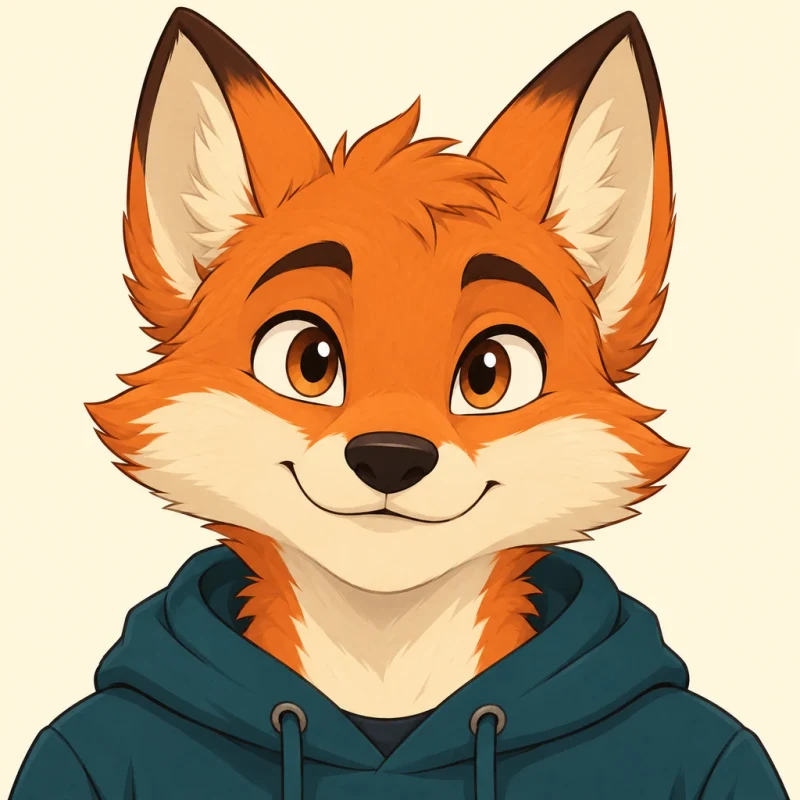
This image is an input asset, not a generated-video frame. The fox was created with AI for LipSyncX. For a branded course, substitute your approved company character and keep the source file for later modules.
2. Load your mascot in LipSyncX
Open the cartoon lip-sync tool. Upload your own character image. To reproduce this example, choose Fox Mascot from the starter images.
Once selected, the image appears above the controls. Check that you loaded the intended version before moving on. The page also offers Crop and Change background; leave those alone if your approved artwork is already composed correctly.
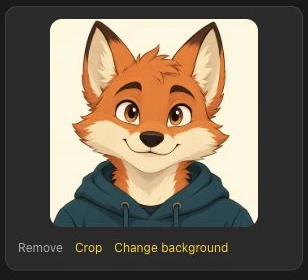
The screenshots in this guide show the English mobile layout. Desktop placement can differ, but the main controls follow the same sequence: image, input mode, settings, and generation.
3. Choose Audio and upload the voice you want to keep
Select Audio when you already have a recording or a finished voiceover. This is the useful route for a mascot with a recurring voice: prepare each new line in that voice, then upload the resulting audio file.
The inspected panel accepts MP3, WAV, or M4A, displays a 30 MB / 10-minute upload ceiling, and recommends audio under 1 minute for best lip-sync quality. Those are upload-panel limits, not a promise that every model or setting can handle the full length.
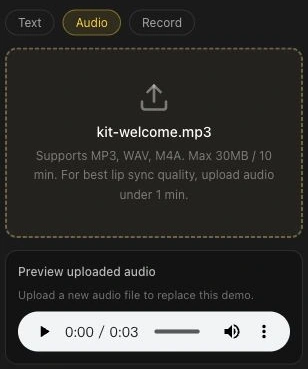
For your first test, aim for about 5–10 seconds of clear speech. Replay the audio before generating. Confirm the first word, the final word, pronunciation, and any silence around the sentence. You can download our sample welcome audio to follow along.
If you already prepare narration in ElevenLabs, upload your exported voiceover here. You do not need to retype its script into Text mode. Text and Record are separate starting points for readers who have not prepared an audio file.
Long pauses are part of the uploaded recording. If needed, shorten them with the audio trimmer, then listen to the edited file again.
4. Check the model, resolution, and credit estimate
Expand Advanced settings to inspect the model and resolution. The screenshot shows LipSyncX 2 Fast at 480p, a practical setting for checking this short example before committing to a higher-resolution render.
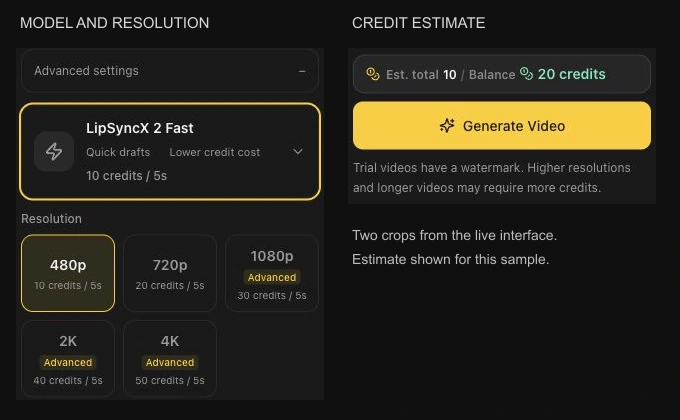
Read the estimated credits for your actual file and compare them with your balance. Changing the model, duration, or resolution can change the quote. Use the current pricing page when planning a batch rather than treating this screenshot as a permanent price list.
When the inputs are correct, sign in if prompted and use the generation button. The tool may ask for a top-up if your balance does not cover the estimate. New trial output has a watermark; check the displayed download conditions before preparing a final business deliverable.
Load your character and test one welcome line before building the rest of the course.
5. Review the animation before downloading
When generation completes, play the result with sound. A successful job still needs a visual check, especially with a non-human character.
| Check | What to inspect |
|---|---|
| First and last words | Speech starts and ends without an unintended cut |
| Mouth and teeth | No distracting deformation or implausible movement |
| Character appearance | Face, outfit, colors, and outline remain usable |
| Pauses | The character does not seem to speak through silence |
| Background | No distracting changes behind the character |
If the result needs work, change one thing at a time: tighten the audio, crop the face more clearly, or try another model. Keep the original image and audio so you can compare attempts.
Turn one talking mascot into an onboarding series
After a short clip works, give each new video one specific job. A useful first set has 3 modules:
| Module | Example content | Suggested starting length |
|---|---|---|
| Welcome | Who the guide is and where to begin | 10–20 seconds |
| Meet HR | What the department handles and how employees ask for help | 20–45 seconds |
| One company value | A concrete behavior employees can recognize | 20–45 seconds |
These lengths are editorial suggestions, not product limits. Reuse the approved character image, voice, and output settings. Keep an image-and-audio pair for each module so a policy change only requires updating the affected segment.
You still need to review every render: reusing an input does not guarantee identical facial detail or motion. Add titles, captions, and other course material in your video editor or learning platform after downloading. This workflow creates a video asset; it does not by itself package a complete tracked learning course.
FAQ
Can a mascot speak using my own voice?
Yes. Select Audio and upload your recording, or use Record to capture one. Uploading a finished recording does not require creating a voice clone.
Will any animal or cartoon face work equally well?
No. Mouth visibility, face proportions, image quality, and the chosen model affect the result. Test a short line with your specific design before producing a series.
Do I need a different image for each lesson?
You can reuse an approved image with new audio. Check each output for character and background changes. If a lesson needs a new setting, prepare and approve that image separately.
Can I use the video in an employee training course?
You can incorporate the downloaded video into your course or onboarding materials, subject to the rights and permissions for your image and audio. Add required captions and have the content owner review policies, names, and instructions before sharing it with employees.
Make your first welcome clip
Open the LipSyncX character tool, load your mascot, and upload one short line in Audio mode. Review that result before producing a longer HR introduction. For a portrait-based presenter, the talking-photo guide follows a similar input workflow.