
Turn a Two-Character Story Scene Into a Dialogue Video

A two-character scene needs more than two voices. The right face must speak at the right time, the other character should stay quiet, and the exchange must still make sense after editing. Start with a short back-and-forth before building a whole story. For this October 2026 workflow, start with a 5–10 second test.
This October 2026 guide uses an original workshop illustration and a newly written four-line scene. LipSyncX's multi-dialogue workflow uses speaker labels and voice choices; it is different from uploading a mixed conversation to a single-person Audio panel.
1. Put both faces clearly in one image
Use one image with two people facing forward or nearly forward. Keep the faces apart, large enough to inspect, and free of hands, microphones, or props covering their mouths. Avoid background faces that could confuse the shot.

In our image, the woman is on the left and the man is on the right. Keep that mapping in your notes. The illustration is original fictional artwork, not a customer scene or a photograph of real course participants.
2. Write short, explicitly labeled turns
Give each line one thought. Use consistent labels and a new line for each turn. Here is our original scene:
A: Is the pattern ready?
B: Almost. One corner still needs work.
A: Then let's check it together.
B: Good idea. Small details make the difference.
Label A is the left character in this example and B is the right. The exchange includes a question, a reply, a response, and a closing line. It avoids simultaneous speech, which makes a first mouth-timing check easier.
Keep stage directions out of spoken text unless the voice control explicitly supports them. A label identifies a speaker; it is not an instruction to change the background, make a character stand up, or create a new camera angle.
3. Open the multi-dialogue workflow
Open the multi-speaker studio. Upload the image containing both characters. Set the two speaker labels consistently, enter the alternating dialogue, and select a voice for each person.
This text-and-voices workflow creates the spoken lines. If your source is already a mixed audio recording, do not assume pasting it into this workflow will separate speakers automatically. Single-person Audio mode is a different input route.
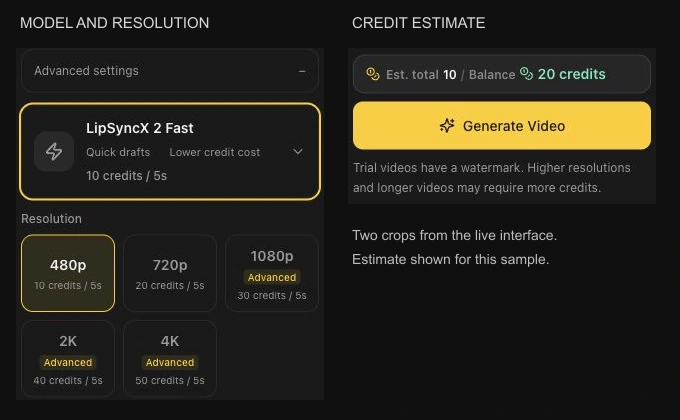
The screenshot shows the real shared model and cost controls, not the multi-speaker label fields. Check the active studio's own controls for your speaker assignments, model, resolution, and quote. Use current pricing for budget planning.
4. Generate and inspect a short exchange
Start with two turns if you want a smaller test. Review the quote before rendering. A revised line or another model can require another paid generation; do not plan on unlimited corrections.
Open the two-person studio once the labels and voices are ready. Our original four-line example uses the Fast Multi (480p) model integration and newly synthesized speech. It is a demonstration of these particular inputs, not a promise that every two-face image behaves identically.
Check four things while replaying:
- Does the left person speak A's lines and the right person speak B's?
- Does the listening mouth remain reasonably still?
- Are words clipped at the transitions between turns?
- Do faces, clothing, and the background remain stable?
If a wrong mouth moves, inspect the face layout and speaker mapping before adding more dialogue. More lines make a mapping error longer, not easier to fix.
5. Edit the scene as a story segment
Download the finished video and import it into your editor. Cut away after a turn if you want to show the object being discussed. Add captions and any shot changes there. This workflow does not automatically generate a full episode, consistent new camera angles, or a new scene for every sentence.
Save the source image, labeled script, voice choices, and final MP4 together. If a later scene reverses the left and right characters, update the mapping deliberately rather than assuming the labels follow narrative identities across images.
FAQ
Can I use two cartoon characters?
Try a short test with clear, separated faces. Nonhuman or heavily stylized mouths can behave differently from the adult faces in this example.
Will speaker labels create subtitles automatically?
Labels organize the turns. Check the studio's available subtitle option and review the exported result; you can also add corrected captions in your editor.
Is this a live conversation tool?
This guide creates a prerecorded dialogue video. It does not demonstrate real-time replies or interactive characters.
For single-speaker characters, see character lip sync. For an audio show's opening, see the podcast host guide. Create one short two-character exchange.