Turn Your Podcast Intro Audio Into a Talking Host Clip
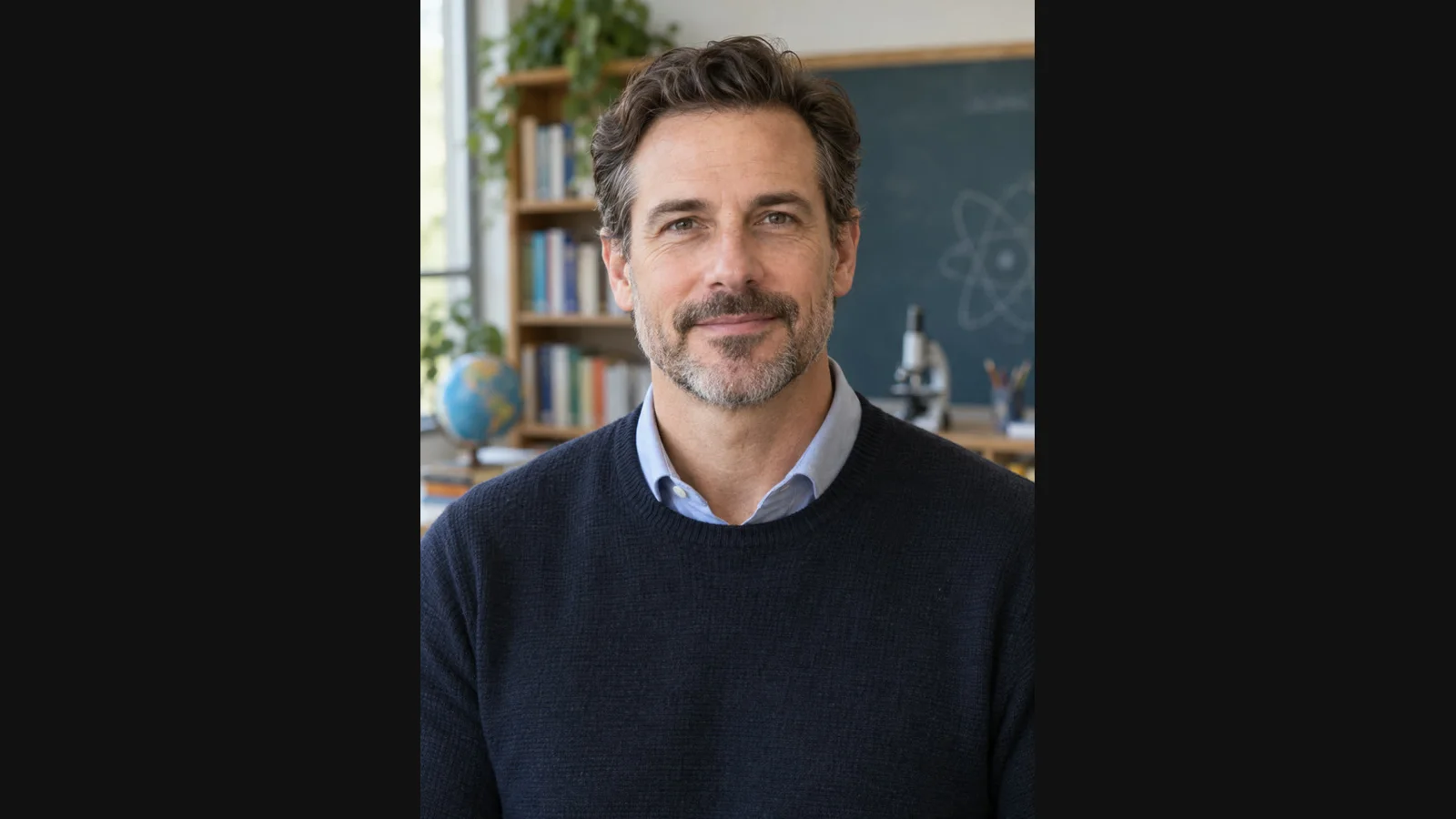
You already recorded the podcast introduction. You do not need to rewrite it just to add a host on screen. A finished intro recording and an authorized host image can become a short talking clip that opens a video teaser. For this October 2026 workflow, start with a 5–10 second test.
This October 2026 LipSyncX example uses a fictional host and newly synthesized audio for an invented show. It demonstrates an opening segment, not automatic video production for an hour-long interview, guest identity verification, or footage of a real conversation.
1. Choose the part that introduces the episode
Keep the excerpt self-contained: show name, topic, and the reason to listen. Start with a 5–10 second sentence to test the face, then extend only after the mouth movement works. A short teaser does not need the full sponsor read or every housekeeping detail.
Here is our original demonstration script:
Welcome to Small Steps, a fictional show about making things. Today we are talking about the first draft, the mistakes that teach us, and how to keep going when a project gets difficult.
The sample does not name or impersonate a real guest. For your episode, obtain the appropriate permissions for the host image and any guest material before using it publicly.
2. Use a host portrait with a clear mouth
Select one person, facing forward or nearly forward, with no microphone hiding the lips. Leave room around the head for responsive cropping. A busy podcast-studio backdrop is less useful than an unobstructed face for a first test.
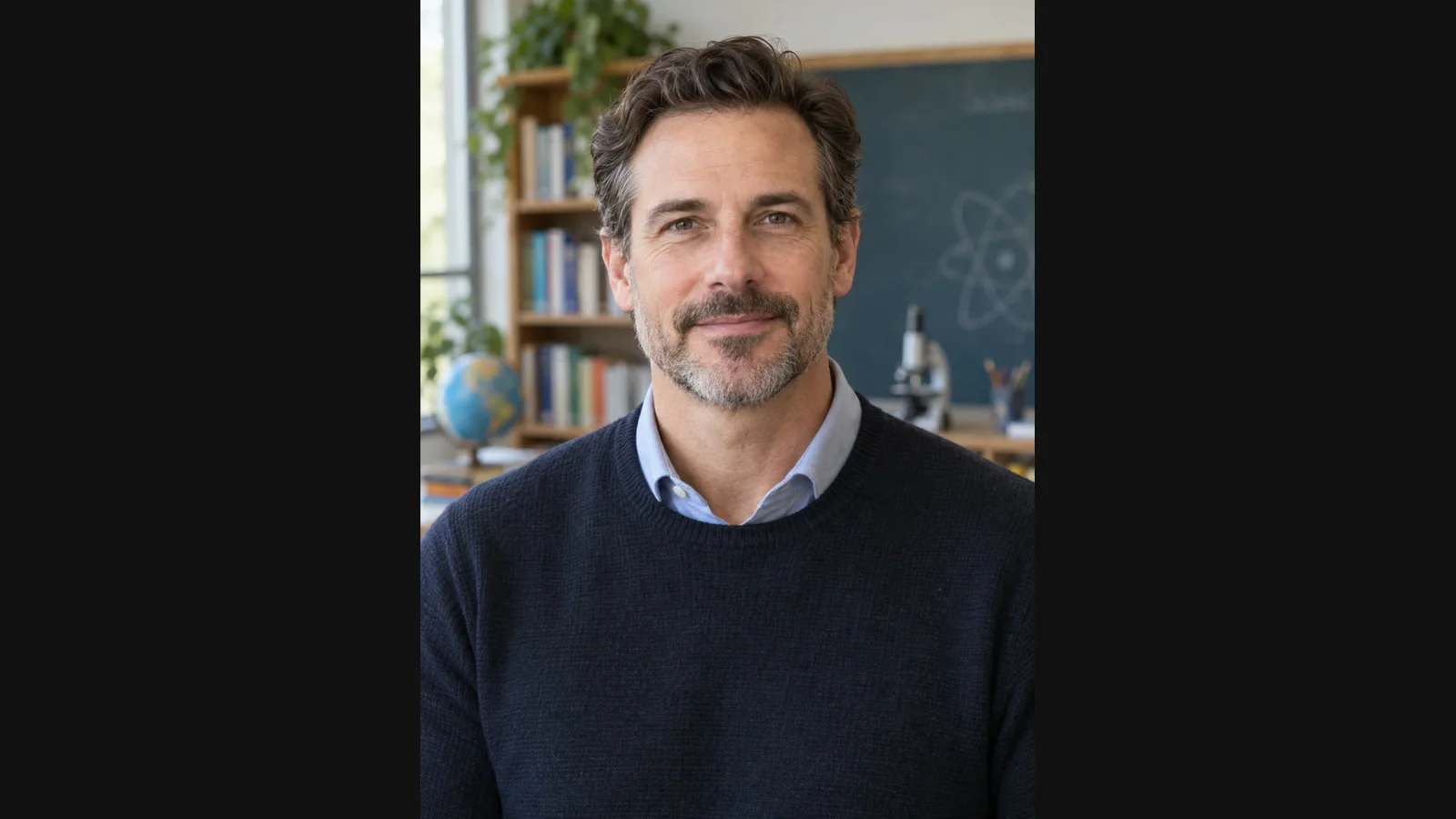
This is a fictional presenter asset, not a real podcast host or a customer upload. If you want your own visual identity, replace it with your authorized photograph rather than presenting a preset as documentary footage.
3. Upload the existing audio in Audio mode
Open podcast video workflows or the talking photo tool. Upload the host image, choose Audio, and load the finished intro recording. You can export the narration from your audio editor first; there is no need to type the script into Text mode.
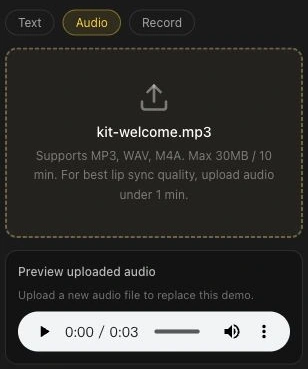
The screenshot documents the shared controls. It is not the fictional host's generation history. Download our original demo intro audio if you want to compare the example input and output.
Replay the file before rendering. If an intro jingle or long silence precedes speech, consider testing a speech-only excerpt first with the audio trimmer. Add the jingle back in your editor so you can control the cut and level precisely.
4. Inspect settings and render a test
Check the model, resolution, and estimated credits in Advanced settings. Our example uses LipSyncX 2 Fast at 480p. Your quote depends on the actual input and settings; check current pricing when budgeting several episodes.
Create one host introduction after confirming the recording is final. New versions can consume credits, so check names and pronunciation before generating a longer take.
Watch the original fictional podcast intro. Listen for the beginning and end of every sentence, inspect the mouth during consonants, and watch for distracting head movement. The synthetic sample is one result with one portrait, not evidence of a real interview.
5. Assemble a video teaser around the clip
Import the host MP4 and the episode excerpt into your editor. Use the host to introduce the topic, then cut to the real interview footage, an authorized guest image, a title card, or a waveform. Add captions and the actual episode link in the surrounding post.
| Edit element | Practical check |
|---|---|
| Host intro | Does it promise the topic the excerpt actually covers? |
| Episode excerpt | Are speaker changes understandable? |
| Music | Is speech clearly audible underneath? |
| End card | Is the show name and listening destination correct? |
Keep the master audio aligned with any lip-synced section. Stretching the video or replacing its speech with a different take can break mouth timing. Review the final export, including the cut from the generated host to the rest of the teaser.
FAQ
Does the tool turn an entire interview into camera footage?
This workflow generates a talking host clip from an image and audio. It does not recover camera footage that was never recorded or decide all the cuts for a complete show.
Can I keep my existing intro music?
Use music you have permission to publish. For easier quality checks, test the speech first, then mix the music in your editor.
What if I need two speaking hosts?
Use a workflow designed for two speakers and check its input requirements. The two-character dialogue guide explains labels and turn review; it is not automatic separation of a mixed podcast recording.
See podcast use cases and two-person dialogue. Upload one finished introduction and an authorized host image.