
Make a Software Rollout Announcement Video From an Approved Voiceover

An employee watching a software rollout announcement needs four answers: what changes, when, what to do, and where to get help. A presenter video is useful when it delivers those answers clearly and points to the written source of truth. For this October 2026 workflow, start with a 5–10 second test.
This October 2026 example uses LipSyncX's original fictional mascot Milo and new synthetic narration. It demonstrates short announcement assets, not a real employer's migration or a promise that employees have read a message. Start from an approved recording so the video preserves the wording your team has reviewed.
1. Approve four fields before recording
Use this compact handoff template. Fill it with real details internally, have the responsible owner approve it, and only then record.
| Field | What the viewer needs |
|---|---|
| Change | Which system or process is changing? |
| Time | Date, local time, timezone, and any access pause |
| Action | The one next step the employee must take |
| Help | A durable internal link or named support channel |
Keep volatile details such as URLs and dates in an editable end card too. If a date changes, compare the recording, subtitles, card, and written announcement before publishing a replacement.
2. Make three clips with different jobs
One long announcement is harder to update than three focused pieces. Our scripts are fictional templates; replace bracketed details with approved facts.
- Before launch: “Our new workspace opens on the scheduled launch day. Read the migration checklist before the change. Your team lead will confirm the timing.”
- On launch day: “The new workspace is ready. Open the approved internal link and follow the sign-in guide. If access fails, contact the help desk.”
- Help reminder: “Need help after the switch? Check the quick-start guide first, then send the help desk the error message. Never share your password.”

These samples deliberately contain no real platform names, company logos, dates, or employee information. They demonstrate structure; they are not ready to send unchanged to a workforce.
3. Upload your approved audio in LipSyncX
Open enterprise training videos or the mascot workbench. Use the approved presenter or mascot artwork. Choose Audio and upload the finished voiceover, rather than retyping it into Text mode.
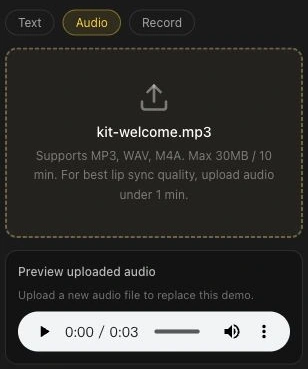
Replay each file and check product names, dates, and the final instruction. The screenshot shows the shared controls, not a signed-in corporate project. The original demonstration videos were rendered through the Fast model integration.
4. Generate a short sample before the full announcement
Start with 5–10 seconds containing the most difficult product name. In Advanced settings, check the model, resolution, and estimated credits. Our samples use LipSyncX 2 Fast at 480p. The quote in your workspace and current pricing govern your job; this tutorial does not promise a fixed cost.
Create the first announcement clip once the audio and artwork are approved. A corrected recording requires another render, so reserve time and credits for review.
5. Review the three original examples
Pre-launch reminder · Launch-day action · Help reminder
Listen for intelligible instructions and inspect the mouth during consonants and pauses. Check that the face remains stable and that the clip includes the last word. These are generated media examples with synthetic English narration; they do not demonstrate a native employee messaging integration.
Keep filenames explicit: workspace-before-v1, workspace-launch-v1, and workspace-help-v1. Store the approved script, audio, image version, and exported MP4 together. Record who approved the message and which version it replaces.
6. Publish alongside the written announcement
Add captions and an end card in your editor. Put the actual help link in the surrounding email, intranet post, or course so people can open or copy it. Do not make employees transcribe a spoken URL.
Send through your existing communication system and use its own reporting where available. An exported MP4 does not itself provide read receipts, completion tracking, single sign-on, or LMS reporting. If only an editable card changes, update it in the editor; if the spoken facts change, replace the voiceover and regenerate that clip.
FAQ
Is this suitable for confidential policy text?
Follow your organization's approval and data handling rules before uploading material. Our public example uses fictional, nonconfidential text and artwork.
Can I reuse the same presenter next month?
Yes. Keep the approved source image and voice workflow, then upload the new finished audio. Review each new output.
Does this replace the full change-management plan?
No. It creates a video asset. Timing, employee support, written instructions, distribution, and adoption measurement remain part of your rollout process.
For related workflows, see AI presenters for courses and the mascot tutorial. Prepare one approved rollout recording and create its presenter clip.