
Make a Talking Animal Educational Video With One Verified Fact
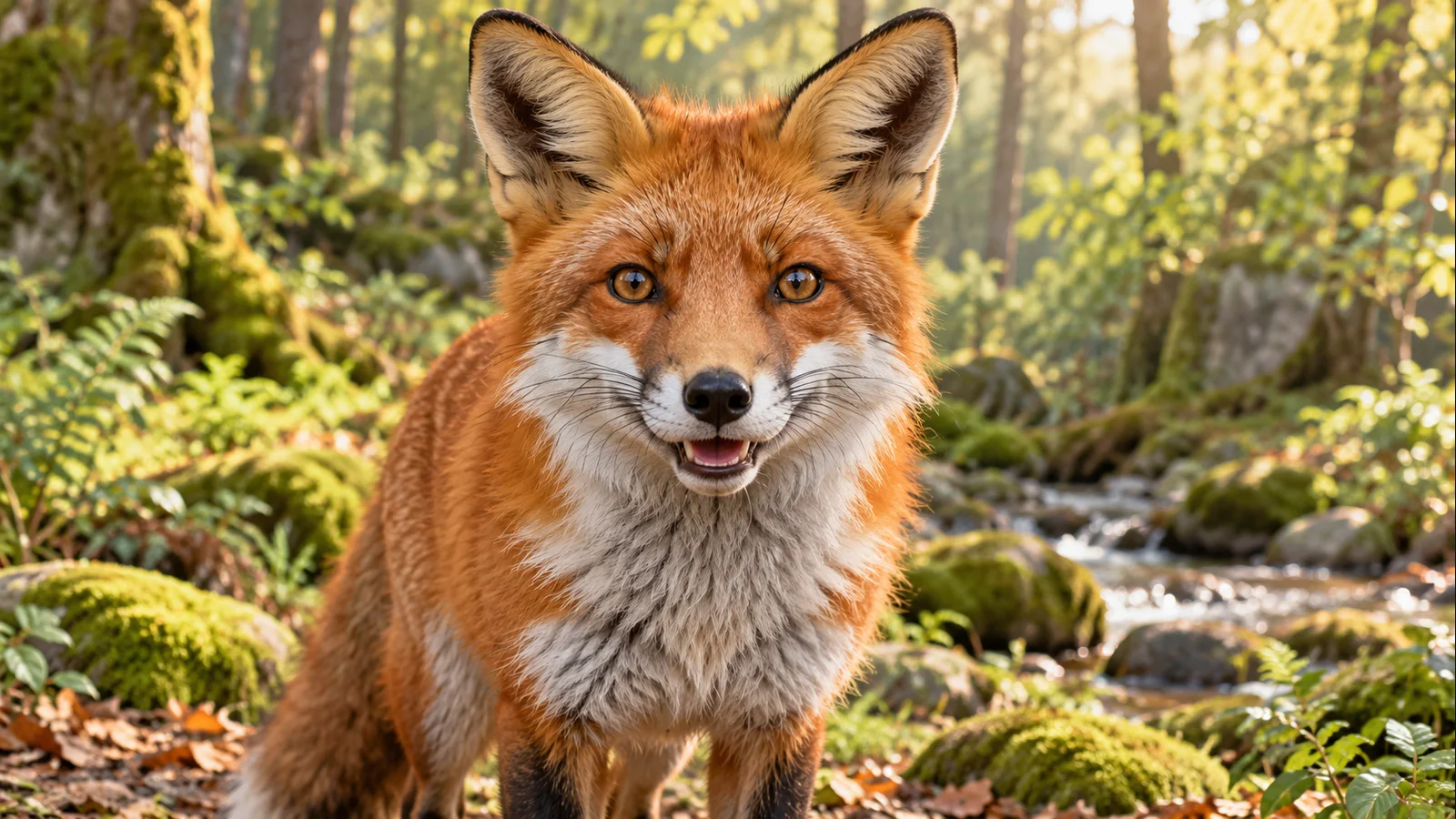
A fox introducing its diet can make a memorable opening for a nature lesson. To make a talking animal educational video, begin with one checked fact and a clear animal image, then upload a short narration and inspect how its muzzle moves. For this October 2026 workflow, start with a 5–10 second test.
This October 2026 example uses an original red fox illustration, synthetic speech, and LipSyncX. The animal speaking is an animated storytelling device. It is not documentary footage, and the lip-sync effect does not establish whether a biological statement is correct.
1. Choose one fact and keep its source
Our first line explains that red foxes are omnivores. The U.S. National Park Service's red fox page describes their varied diet and gives examples from Isle Royale. Keep regional observations separate from statements about every fox everywhere.
I am a red fox. I am an omnivore, which means I eat different kinds of food. In the wild, what I find to eat depends on where I live.
This is a newly written teaching script, not a quotation from a park ranger or a customer. It makes one point rather than listing unrelated facts. Put the source in the lesson notes and have a knowledgeable reviewer check any additional claims before recording.
2. Use a visible muzzle and a simple composition
Choose a frontal or near-frontal animal image with clear eyes and an unobstructed mouth. A tiny animal in a large landscape makes the result harder to judge. A side-facing muzzle, beak, or very stylized mouth may behave differently from this example.
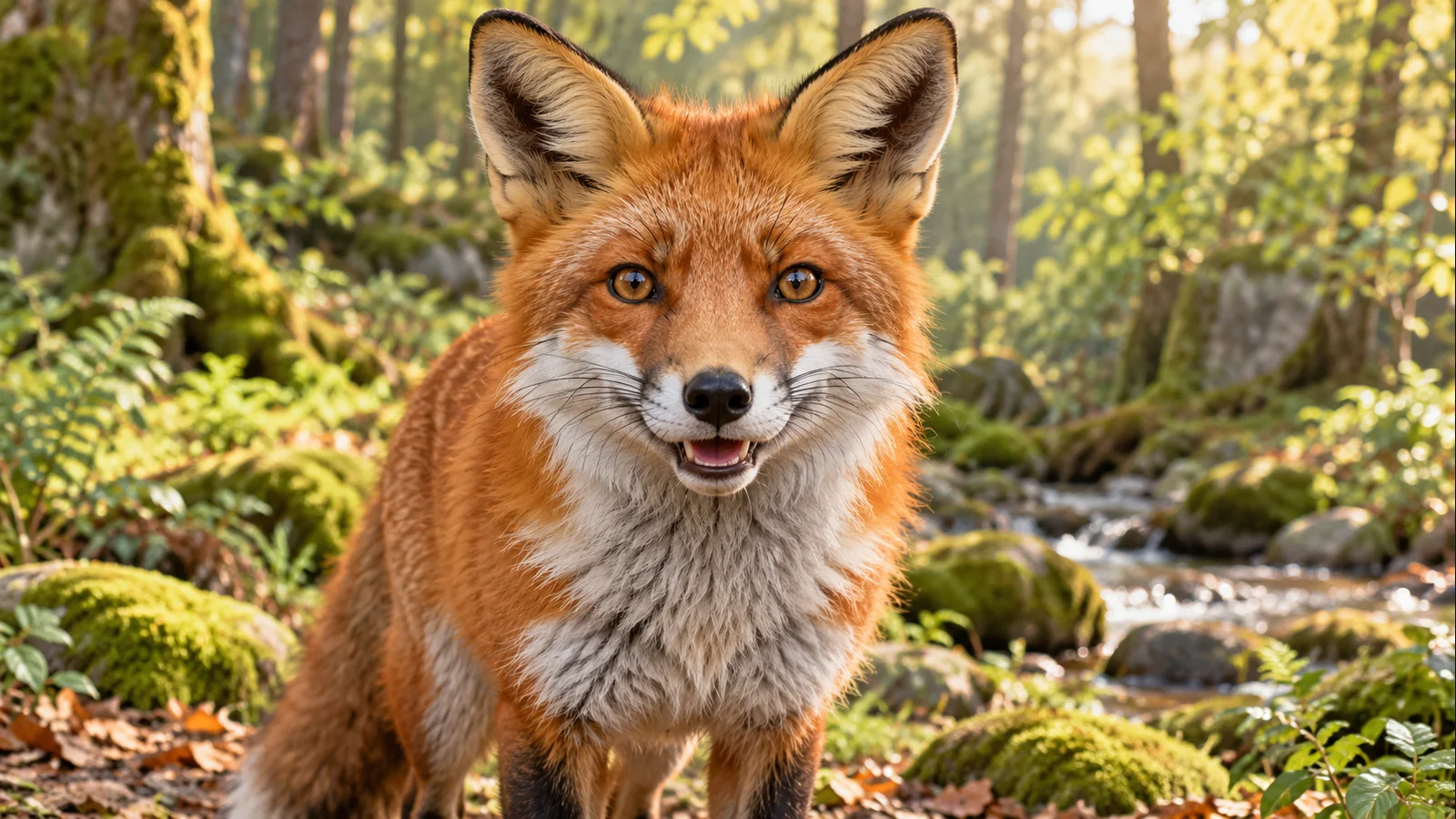
Our illustration was generated specifically for this guide. It is not a photograph of an animal speaking. Keep that distinction visible when you share the finished clip, especially with younger viewers.
3. Record a short explanation
Use your own recording or a finished synthetic voiceover. Speak slowly enough for the intended audience to follow the vocabulary, but avoid exaggerated pauses between every word. Start with 5–10 seconds to test the muzzle, then make a longer explanation only after reviewing the result.
If the recording contains a mistake, fix the audio before rendering. Lip-sync software will animate the sound you provide; it will not fact-check the narration or automatically repair a mispronounced species name.
4. Upload the animal and the audio
Open talking animals. Upload the animal image, choose Audio, and load the finished recording. Listen from beginning to end. Use the audio trimmer if the file has unwanted leading silence.
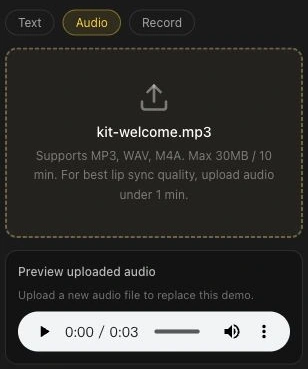
This screenshot documents the shared controls, not the wildlife render. Use the original red fox narration to reproduce the sample's audio input.
5. Read the quote and make a test
Our sample uses LipSyncX 2 Fast at 480p. Check Advanced settings and the estimated credits for your selected model, file, and resolution. Refer to current pricing before generating several species or language versions.
Create one short animal explanation. New renders can consume credits, so review a short test before committing to a whole series.
Play the original red fox educational sample. Check mouth timing, teeth and muzzle distortion, unexpected head movement, and whether the sentence ends cleanly. A convincing fox result does not guarantee the same model will work equally well for birds, insects, or every illustrated species.
6. Turn the clip into a small learning activity
Place the clip before a real image, diagram, or field observation. Add the species name and fact source outside the generated frame, where they are easy to read. A useful follow-up question is: “Which foods in this habitat might an omnivore find?” The answer should come from your lesson materials, not from guessing at the animation.
For a 3-clip sequence, separate identity, diet, and habitat into distinct recordings. Reuse the approved artwork, but keep a source note for each claim. Add captions and review scientific vocabulary manually; automatic captions can mishear unfamiliar names.
FAQ
Can I use an animal photograph instead of an illustration?
Yes, with permission to use the image. Test the actual muzzle and framing. Photo realism does not guarantee good lip movement.
Does a talking animal replace real wildlife footage?
It serves a different purpose: a clearly labeled animated explanation. Use real footage or photographs when teaching actual behavior and anatomy.
Can I make another language version?
Prepare and fact-check a new narration, upload that audio, and generate a new clip. Do not assume changing the page language translates an existing recording.
For other character formats, see character lip sync and teacher-led lesson intros. Upload an animal image and test one verified sentence.