Talking Photo Generators Online: Choose the Right Image-to-Video Route
A talking photo generator online takes one still image and a voice track or typed script, then creates a video in which the face appears to speak. You do not need an original recording of that person talking. You do need an authorized image, suitable audio, and a workflow that explicitly supports still-image input.
Checked: 2026-10-25. This guide compares documented routes from LipSyncX, D-ID, HeyGen, and sync-3. It explains how to choose and run a first pilot; it is not a claim that we tested all four on matching material.
If all you have is a portrait, choose an image-to-speaking-video workflow. If you need to preserve a filmed performance, choose existing-video lip sync instead.
What is a talking photo?
A talking photo is generated movement from a still. The system must create the mouth shapes and usually some combination of jaw, blink, expression, or head motion. The original picture supplies appearance, but it does not contain a recorded performance.
That is why input selection matters. A clean frontal headshot gives the model visible facial features to work with. A tiny face in a crowded wedding photograph or a profile hidden by hair is a more difficult starting point.
A talking photo also differs from a slideshow with voiceover. A slideshow leaves the portrait still while narration plays. A talking-photo workflow creates visible articulation, which introduces identity and movement errors that a static image cannot have.
How is it different from video lip sync?
| Question | Talking photo | Existing-video lip sync |
|---|---|---|
| Source | One still image | Recorded or generated footage |
| Movement | Must be generated from the image | Adapted from a moving performance |
| Typical goal | Presenter, greeting, short explanation | Replacement line, dubbed interview, localization |
| Main review risk | Invented movement changes the face | Adaptation disrupts the original performance |
If the source is already a filmed instructor, use the video dubbing route. If you have a staff headshot and an approved welcome message, use the talking-photo route. Choosing the wrong starting input can create unnecessary editing work.
A singing photo is a related but separate use case. Sustained notes and music need their own sample. A tool producing a plausible spoken greeting does not demonstrate that it will match a chorus convincingly.
Choose with five practical questions
Can you use your own audio?
An uploaded recording lets you approve timing and pronunciation outside the image tool. That is useful when you already have a voice actor or a finished narration. A typed-script workflow is convenient when you do not want to use a microphone.
Check whether uploaded audio, built-in speech, and cloning are included in the same mode. They are different inputs and may have different plan requirements. A list of stock voices is not evidence that your own recording can be uploaded.
Does the tool support your actual image?
A real headshot, human-like illustration, pet face, and anime character are different test cases. Ask for explicit model support and run a small pilot. Avoid an expensive full-length generation as your first experiment with an unusual source.
Can the voice say the important words correctly?
Test the brand name, person’s name, number, and technical term. Listen before generating movement. If the TTS mispronounces the product, the face may be well synchronized to the wrong pronunciation.
Can you export the version you need?
Record resolution, aspect ratio, watermark, duration, and file format. A successful preview is not enough if the download is limited or the crop cuts off the chin. For a vertical social post, review a phone-sized export.
Are image, voice, and output permissions adequate?
Your right to upload a photograph is separate from your right to imitate a voice. A paid account does not grant permission to depict an unwilling person saying new words. Check source rights and the exact output terms before publishing.
A short list of online talking-photo routes
| Route | Documented starting point | Voice path to investigate | Main boundary |
|---|---|---|---|
| LipSyncX | Portrait with audio or text | Upload or generated speech | Test the offered model and settings |
| D-ID Studio | Text, audio, and still images | Studio voice or audio workflow | Separate Studio from Video Translate |
| HeyGen photo avatar | Single image with audio or script | Recording, TTS, or authorized cloning | Confirm mode and plan |
| Sync sync-3 | Single-image generation described in June 2026 | Script, upload, or clone | Do not assume older models match |
The table deliberately avoids copying a company-wide language count into every row. Voice generation, translation, and lip animation can have different language coverage. Confirm the particular voice and feature you intend to use.
Disclosure: LipSyncX publishes this article and offers a commercial talking-photo product. The comparison concerns documented input routes and workflow fit. It does not present independent realism scores.
LipSyncX: begin with a portrait and a short message
The LipSyncX talking-photo tool provides a direct place to start with a headshot and approved speech. Try a short message before committing to a full course or ad.
Pros: a clear portrait/audio starting point and retained first-party examples. Cons: one good portrait result cannot prove reliability on every face, style, language, or long recording. Inspect the quote and review the export before scaling the project.
D-ID: investigate a structured avatar workflow
D-ID’s Studio page describes text, audio, and images as inputs for avatar-led video. It is relevant for explanatory presenters and teams already using its business workflow.
Pros: photo-led creation is an explicit product route. Cons: Studio and translation features should not be merged into a single assumed entitlement. Check plan rights, branding, and the required export separately.
HeyGen: investigate a broader creation workspace
HeyGen’s lip-sync page includes a talking-photo route alongside filmed-video tools. That may suit a small team that also wants scripts, voices, or localization in the same workspace.
Pros: several stages can share one creation process. Cons: the relevant model and plan determine the actual workflow. A broad feature page does not establish equal performance on every input.
Sync: distinguish sync-3 from earlier model assumptions
Sync’s single-image guide dated June 21, 2026 describes sync-3 creating movement from a still. It also discusses human-readable character illustrations.
Pros: single-image support is explicitly described for that model. Cons: it would be misleading to apply the claim to every historical Sync model or to arbitrary nonhuman characters. Verify the exact model in the account before submitting.
For a wider view, use the generator shortlist. Pick two routes with matching inputs, rather than comparing a photo tool with a filmed-footage workflow that requires a different source.
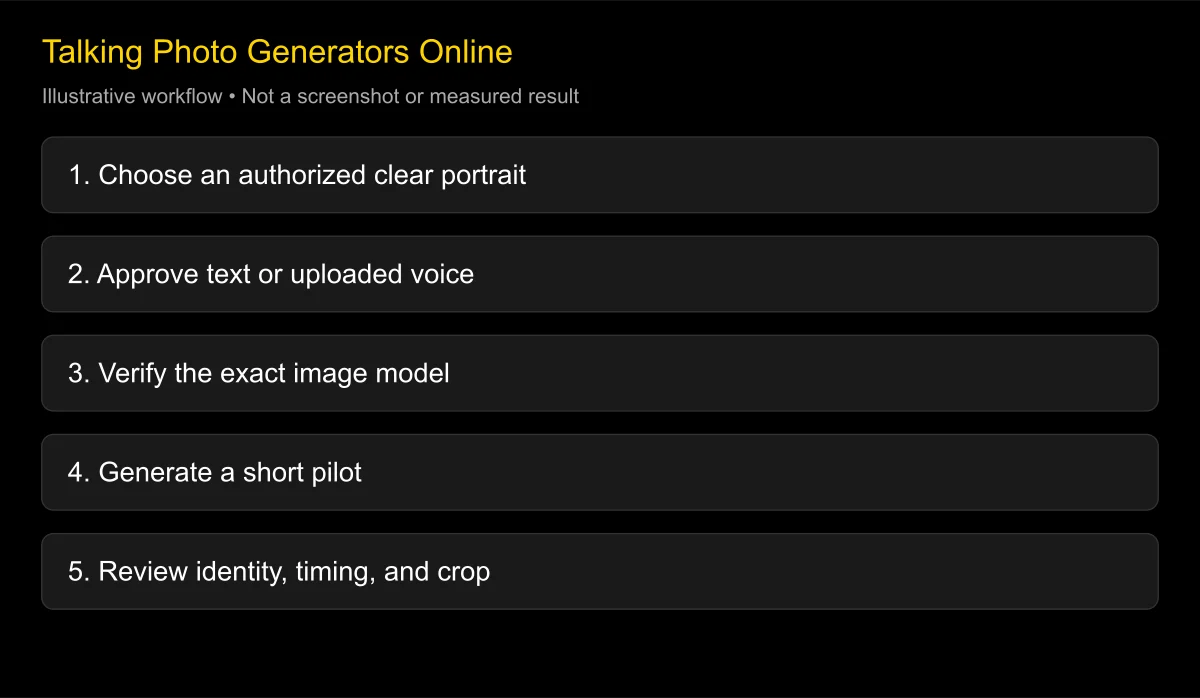
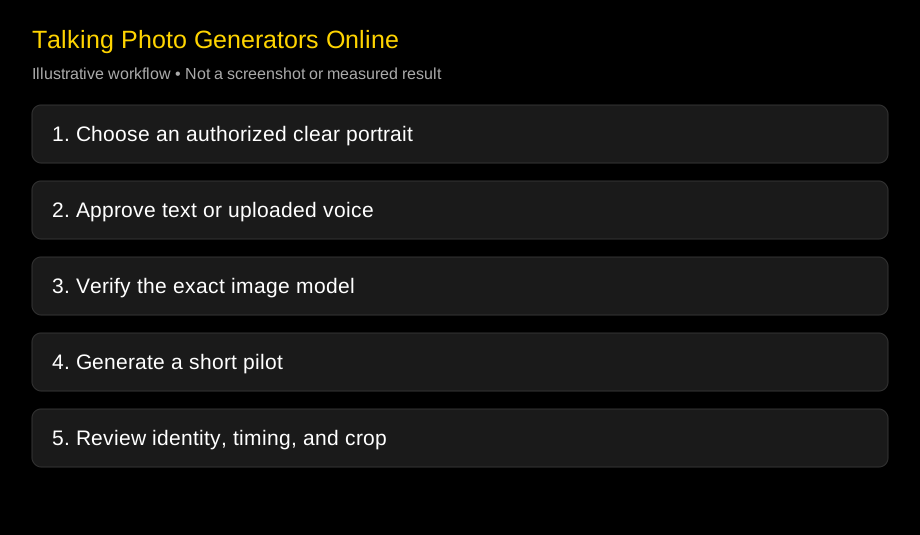
Make a first clip in four steps
- Prepare the image. Use a clear single face, include the full chin and enough shoulders, and keep the original file. Avoid a heavily compressed screenshot when a better source exists.
- Prepare the voice. Write a short message or upload approved audio. Listen for names, pacing, and sentence endings before generating a face.
- Generate a pilot. Check model, dimensions, duration quote, and export terms. Save those settings with the source files.
- Review and export. Watch at normal speed, inspect difficult timecodes, and confirm the final crop. Keep the approved version separate from rejected attempts.
A ten-second pilot is an editorial suggestion, not a universal upload limit. It is long enough to include a phrase, pause, and ending without making every early correction expensive. Use your actual content rather than a generic demo sentence when pronunciation matters.
If you have no recording, follow the text-to-speech photo guide. That workflow separates approving the voice from generating the motion so that a script change does not create needless rerenders.
What can you do with just a headshot?
For an onboarding welcome, use a person who has agreed to the message and purpose. A useful first script might be: “Welcome to the team. Open your checklist, then choose your first task.” Review the last phrase as carefully as the opening.
For a product explanation, keep the portrait segment short and cut to the actual product. The speaker does not need to occupy every second of the final video. A close-up demonstration or screen recording can carry details more clearly than a face.
For a greeting, use a short original message and an authorized image. If the recipient’s photo is a surprise upload, consider whether they would reasonably expect that use. Permission is a practical production input, not a detail to resolve after rendering.
Can you use a historical portrait or an illustration?
A historical photograph may have a different copyright status from the depicted person’s likeness or associated voice. Establish the rights for the image and avoid presenting generated speech as a recovered recording. Label dramatizations clearly when the audience could mistake them for authentic material.
An illustration may not follow ordinary human facial geometry. A small mouth, unusual eyes, or a flat profile can lead to invented teeth or unstable movement. Use a model that specifically describes the relevant input and judge the output as a stylized animation.
A pet face adds another geometry problem. Do not assume that a tool accepting a human-like character also supports a dog’s muzzle. A short test is essential, and a playful result should not be described as evidence of realistic human speech.
What makes a talking photo look wrong?
Common problems include cropped chins, obscured lips, exaggerated expression, and voices that speak too quickly. Keep the first test simple: one face, clean speech, restrained delivery, and a clear image.
If the face changes identity, reject the export and try a better source or another route. If the voice sounds rushed, rewrite the sentence. If the mouth continues moving through silence, record the defect timecode and review the timing settings or model.
Inspect the full face and the neck, not just the lips. Teeth flicker, shifting facial hair, and unstable glasses can distract even when the syllables align. A still screenshot does not establish acceptable motion.
Keep the source and the decision together
Archive the image, approved audio, text, model, date, quote, settings, and final export. This small evidence package makes it easier to repeat a successful clip or diagnose a later failure. It also prevents a revised script from accidentally being paired with an old audio track.
For multilingual work, add a native reviewer’s approval for each language. A language selector is not enough to verify pronunciation. Keep translation approval separate from visual approval so you know which stage needs correction.
FAQ
Do I need an original video to make a talking photo?
No. A genuine talking-photo workflow generates motion from a still. Existing-video lip sync is a different route that starts with footage.
Can a talking photo use my own voice?
Often yes, when the tool supports uploaded recordings. Confirm the particular feature and use a voice that you are authorized to upload and publish.
Does online mean nothing is uploaded?
No. A browser workflow generally sends files to the service for processing. Check its privacy and retention terms before uploading sensitive faces or recordings.
Can I make a full lesson from one photo?
Possibly, depending on the product and duration limits, but test a short segment first. For a long lesson, mix presenter clips with useful demonstrations and review continuity between segments.
Is a talking photo the same as a voice clone?
No. The photo workflow generates visible movement. Voice cloning creates or imitates a voice and requires its own permission and feature support.
Start with the shortest useful message
Bring one authorized headshot and a two-sentence script to the talking-photo tool. Approve the voice, generate a short pilot, and check it at the exact crop you plan to publish.
Changelog
- 2026-10-25: Checked official D-ID, HeyGen, and Sync image routes. Added model-specific boundaries, a four-step pilot, and separate checks for historical images, illustrations, voices, and exports.