
Make a Photo Talk from Text to Speech: No Microphone Needed
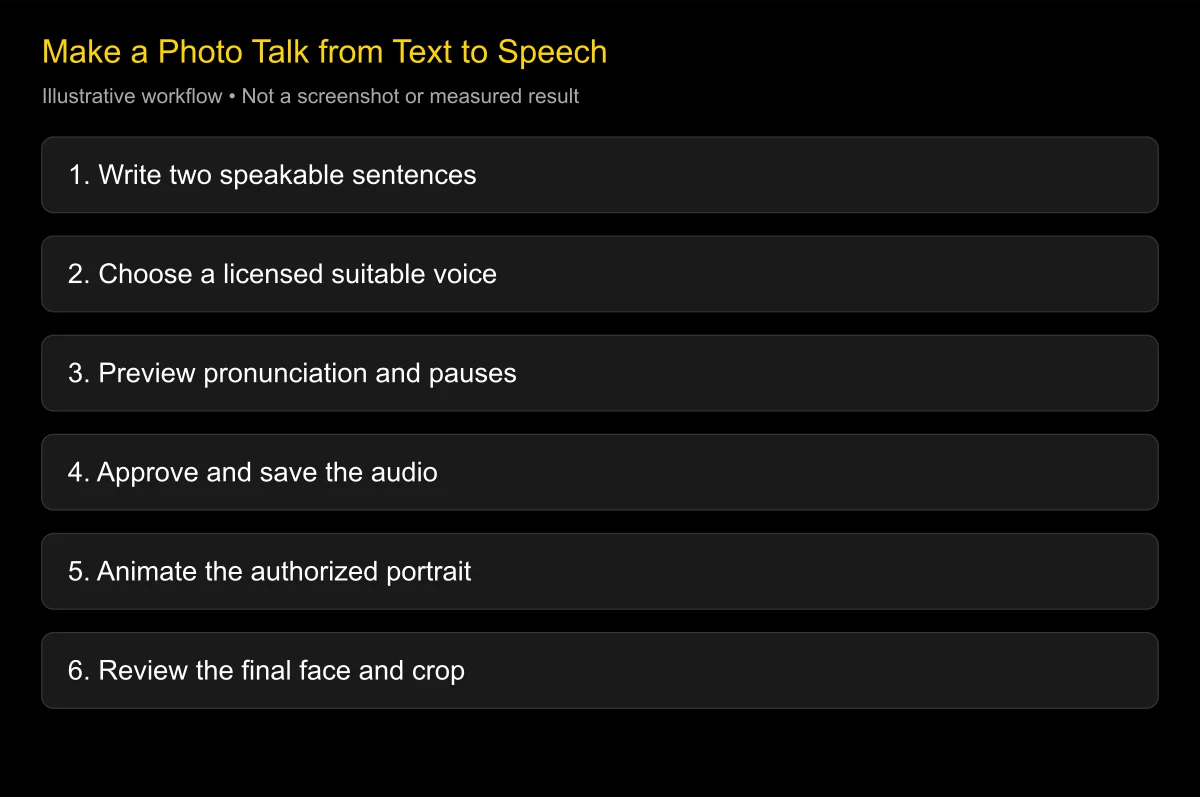
Yes, you can make a photo talk from text to speech without recording yourself. Write the script, generate and approve a licensed voice, then use that audio with an image-to-speaking-video tool. Some platforms combine all three stages, but checking the voice before generating the face prevents unnecessary rerenders.
Checked: 2026-10-25. This guide reviews official D-ID, HeyGen, Sync, and ElevenLabs descriptions. Language support and pause controls depend on the selected voice model; they should not be inferred from a company-wide headline.
The reliable order is script, voice, then face. A correctly synchronized mouth can still deliver the wrong pronunciation, so approve the audio before judging the animation.
What you need before starting
Prepare one authorized portrait, a short script, and a voice you may use for the intended purpose. A clear frontal face with an unobstructed mouth is a useful first test. Keep the full chin and enough surrounding space for the final crop.
You do not need a microphone for ordinary text-to-speech. Voice cloning is optional and introduces additional consent requirements. A stock or designed voice can be appropriate when you do not need to reproduce a particular person.
Keep the source image, text, final audio, and settings together. If the wording changes later, save a new audio version rather than overwriting the old one. That makes it easier to avoid pairing a new caption with an old recording.
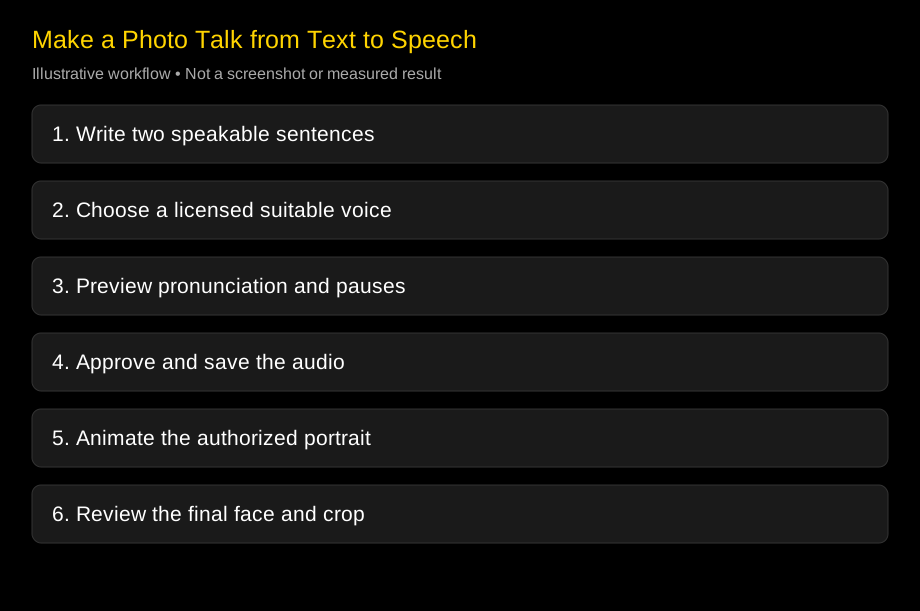
Make the photo talk in three stages
1. Write for speech rather than a page
Use one idea per sentence and put the main action early. Read the line aloud, even if a synthetic voice will deliver it. If you need to stop to understand your own wording, the listener probably will too.
A useful first script is around two short sentences. For example: “Welcome to the workspace. Open your checklist, then choose the first task.” This is an original script example, not a recorded product result.
Spell out numbers or abbreviations when the voice reads them incorrectly. Test the actual brand and person names before writing the full script. A voice that pronounces ordinary English well may still need help with a product name or mixed-language phrase.
2. Generate and approve the voice
Choose a voice appropriate to the audience and language. Listen without looking at a face. Check pronunciation, pacing, emotional tone, and the final word, then make changes to the text or supported voice settings.
Save the approved audio before generating the image animation. If the platform combines the stages and offers a voice preview, use it. If it does not, start with a short pilot so a small wording correction does not require regenerating a long clip.
3. Animate the portrait and review the export
Upload the approved audio to a talking-photo workflow or use the platform’s supported script path. Check the selected model, quoted duration, crop, and export conditions. Record the settings with the source files.
Watch the result at normal playback speed. Inspect the first phrase, pauses, and final closure, then look at the full face and neck. If the identity changes, try a clearer source or another route rather than assuming the voice is responsible.
Improve a marketing script before rendering
Compare these two original examples:
| Draft | Spoken version | Why the revision helps |
|---|---|---|
| Our platform enables comprehensive workflow optimization. | Put your team’s next task in one shared checklist. | Gives the listener a concrete action |
| Please navigate to the settings section to proceed. | Open settings. Then choose your language. | Creates a clear phrase break |
| Save 20% before 10/31. | Save twenty percent before October thirty-first. | Reduces ambiguous number reading |
These are writing examples, not a claim that every voice needs spelled-out numbers. Preview the actual output. Keep the version that says the intended thing clearly and naturally.
For a short product intro, use a three-part template: who it helps, the immediate task, and the next action. For example: “Managing a small class? Put the lesson checklist in one place. Open the template and add your first activity.” Keep the portrait segment short enough that the product demonstration can do the detailed explaining.
If you already have a finished recording, skip TTS and use the talking-photo tool with that file. The point is to approve the voice, not to force every project through a synthetic-voice stage.
How should you add pauses?
Start with normal punctuation. A full stop usually encourages a stronger boundary than a comma, although the exact delivery is model-dependent. Short sentences are easier to revise than one long line filled with pause marks.
Some engines support SSML breaks, audio tags, or other controls. Do not assume those syntaxes are interchangeable. A command intended for one model may be ignored or spoken aloud by another.
ElevenLabs’ TTS documentation distinguishes voice models and capabilities. Follow the documentation for the exact model before adding tags. When a feature supports a dedicated pause control, test a short preview and keep the accepted result.
For example, the plain-text line “Open settings. Then choose your language.” is a portable starting point. A tag such as <break time="500ms"/> is only appropriate in an engine that explicitly supports that SSML syntax. The example describes a half-second requested pause, not a universal accepted command.
Which tool path should you use?
| Starting situation | Route to investigate | Main boundary |
|---|---|---|
| Script and portrait, no recording | Integrated talking-photo text route | Preview the generated voice and check model |
| Approved external TTS audio | Audio upload into a photo tool | Keep exact timing and voice rights |
| Need a recognizable personal voice | Authorized clone plus photo animation | Obtain voice and likeness consent separately |
| Need several languages | Native-reviewed scripts and language-specific voices | Do not infer equal quality from availability |
D-ID’s Studio page describes text, audio, and still-image inputs for avatar videos. HeyGen’s lip-sync page describes typed scripts and photo avatars alongside footage workflows. Sync’s image guide describes script-and-voice options for sync-3.
Those official descriptions justify investigating the route; they are not comparative realism evidence. Disclosure: LipSyncX publishes this article and offers a commercial talking-photo workflow. No independent same-input quality ranking is claimed.
What do the language numbers mean?
Language support is model-specific. The ElevenLabs documentation reviewed on October 25, 2026 lists Flash v2.5 with 32 languages and Multilingual v2 with 29, while newer model families list different totals. Record the exact model instead of saying that every voice has the largest advertised coverage.
The same caution applies to video platforms. A language available for uploaded audio, translation, or a stock voice may not be available for every clone or avatar mode. Verify the combination you need in the actual workflow.
For multilingual content, ask a native speaker to approve the text and listen to the generated audio. Include names, dates, and technical terms in the pilot. A plausible mouth cannot tell you that a translated sentence is accurate.
Keep voice and likeness permission separate
Someone may consent to their photograph being displayed without consenting to new speech being attributed to them. A voice actor may license a recording without permitting a clone. Write down the purpose, distribution, duration, and commercial scope before generating material for a client.
For a recognizable voice clone, obtain explicit permission from the person or authorized rights holder. Keep consent with the source assets and a contact for corrections or withdrawal requests. Avoid implying that a generated statement was a real recording.
Check the tool’s own terms and data practices as well. A browser tool generally uploads files for processing, and deletion or training rules may differ by plan. Use the face-upload safety guide, training and retention guide, and commercial-use guide when preparing sensitive or paid work.
Troubleshoot the stage that failed
If the product name is wrong, revise or regenerate the voice. If the voice is clear but too fast, shorten the script or use supported pacing controls. If the face drifts or teeth flicker, inspect the image and visual model.
If the mouth keeps moving through a pause, save the timecode and check timing or model options. If the final word is cut off, compare the audio duration with the submitted clip and export. Avoid changing several variables at once, because that hides which correction helped.
A short pilot makes this work manageable. Save rejected attempts as evidence, then keep the accepted recording and image settings. For a larger project, the generator shortlist helps identify another matching route without restarting the whole script process.
FAQ
Can I make a photo talk from text to speech without a microphone?
Yes. Generate a licensed synthetic voice from a script, then animate the photo using the resulting audio or an integrated text route.
Do I have to clone my voice?
No. Stock or designed voices can work. Cloning is optional and requires separate authorization and feature support.
Can I put SSML in every text box?
No. Use SSML or audio tags only when the exact engine and model document support. Otherwise start with plain language and punctuation.
Will translating the script preserve the same timing?
Not necessarily. Languages use different phrase lengths and pacing. Approve a speakable adaptation and measure the actual audio before generating the face.
Does a realistic face make the voice sound more natural?
It can affect your impression, but it does not fix pronunciation or pacing. Listen to the audio by itself before reviewing the animation.
Approve two sentences before animating
Write a short message with the actual names and numbers your audience needs. Bring it to the talking-photo tool, preview the voice, and generate a short portrait clip only after the audio says exactly what you intend.
Changelog
- 2026-10-25: Checked official text, audio, and image routes and model-specific TTS language information. Added spoken-script examples, conditional SSML guidance, and separate voice and likeness permission checks.