
Make Several Lip-Synced Performance Shots From Your Own Song
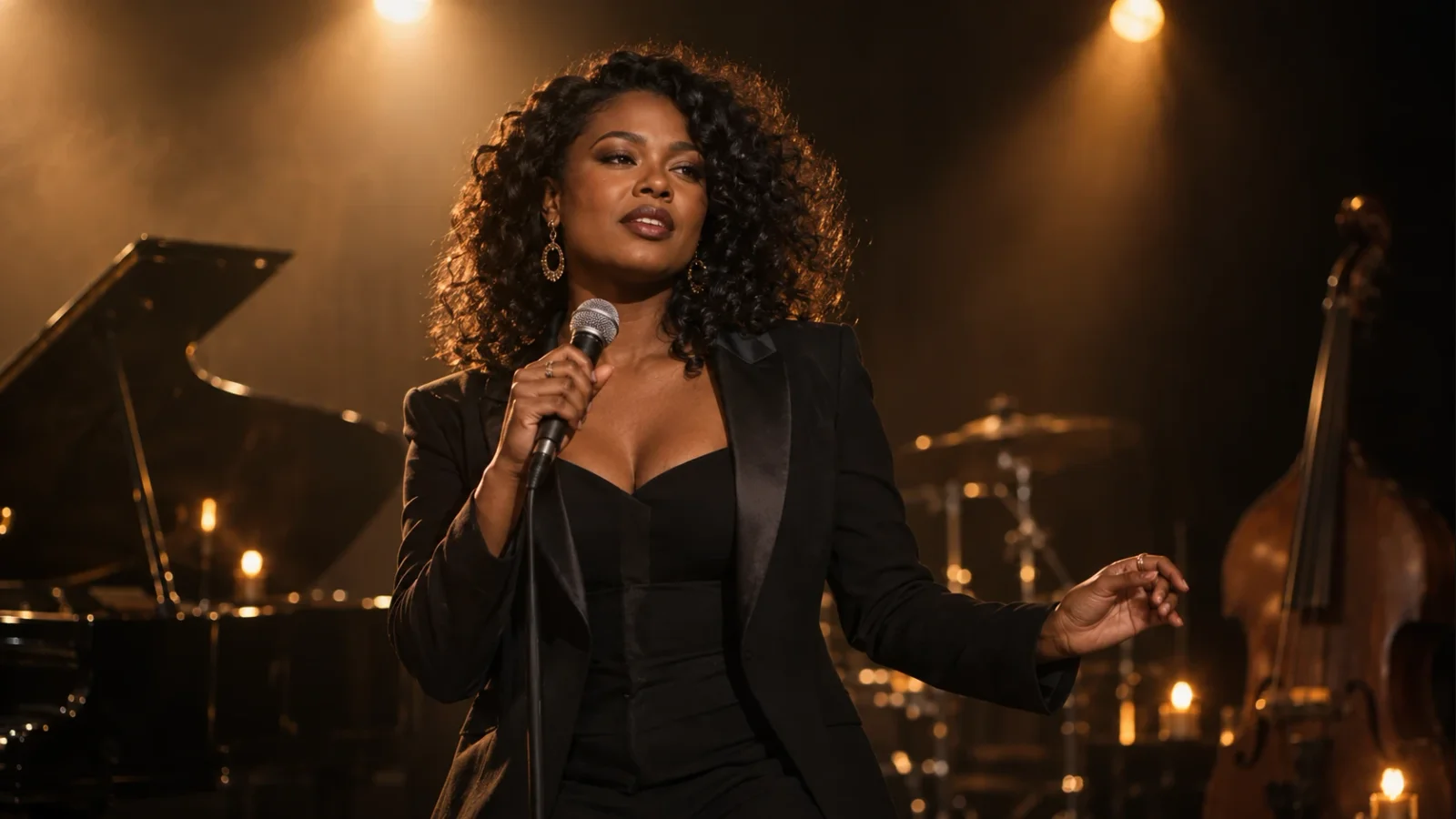
Two performance shots can both look convincing and still fall out of sync when you place them against the song. The fix starts before generation: keep the exact source time range for every audio excerpt and put the resulting clip back at that same position in your edit. For this October 2026 workflow, start with a 5–10 second test.
This October 2026 guide demonstrates the process with an original short synthetic melody and LipSyncX-owned fictional performer artwork. It is a simple timing test, not a commercial song, a customer track, or a claim that a model automatically edits a complete music video.
1. Keep one master audio file
Use a song and recording you own or are authorized to publish. Export one final master and leave its timing unchanged while creating performance clips. If you later change the tempo, intro length, or vocal take, earlier renders may no longer match.
Our small demonstration uses an original synthetic vocal phrase and a newly composed backing. The deliberately simple test makes timing easier to inspect; it is not intended as a professional singing-voice showcase.
2. Make a shot log before cutting excerpts
Record exact start and end times from the master. Do not use labels such as “chorus bit” without numbers. This is an example planning log, not the measured timing of every demo file:
| File | Master start | Master end | Job |
|---|---|---|---|
| verse-a | 00:12.000 | 00:20.000 | First performance shot |
| chorus-a | 00:36.000 | 00:44.000 | Chorus close-up |
| chorus-b | 00:36.000 | 00:44.000 | Alternative take of the same phrase |
The two chorus clips use the same audio range. That makes them alternatives for the same place in the song. If you include a short lead-in before a word, write down that lead-in too; it belongs in the offset calculation.
3. Pick performance images with visible mouths
Avoid microphones, hands, deep profile angles, or tiny faces. Test one still image and a short phrase before making many shots. For the same performer across shots, use your own consistent source images; a lip-sync render does not guarantee identity consistency between unrelated portraits.
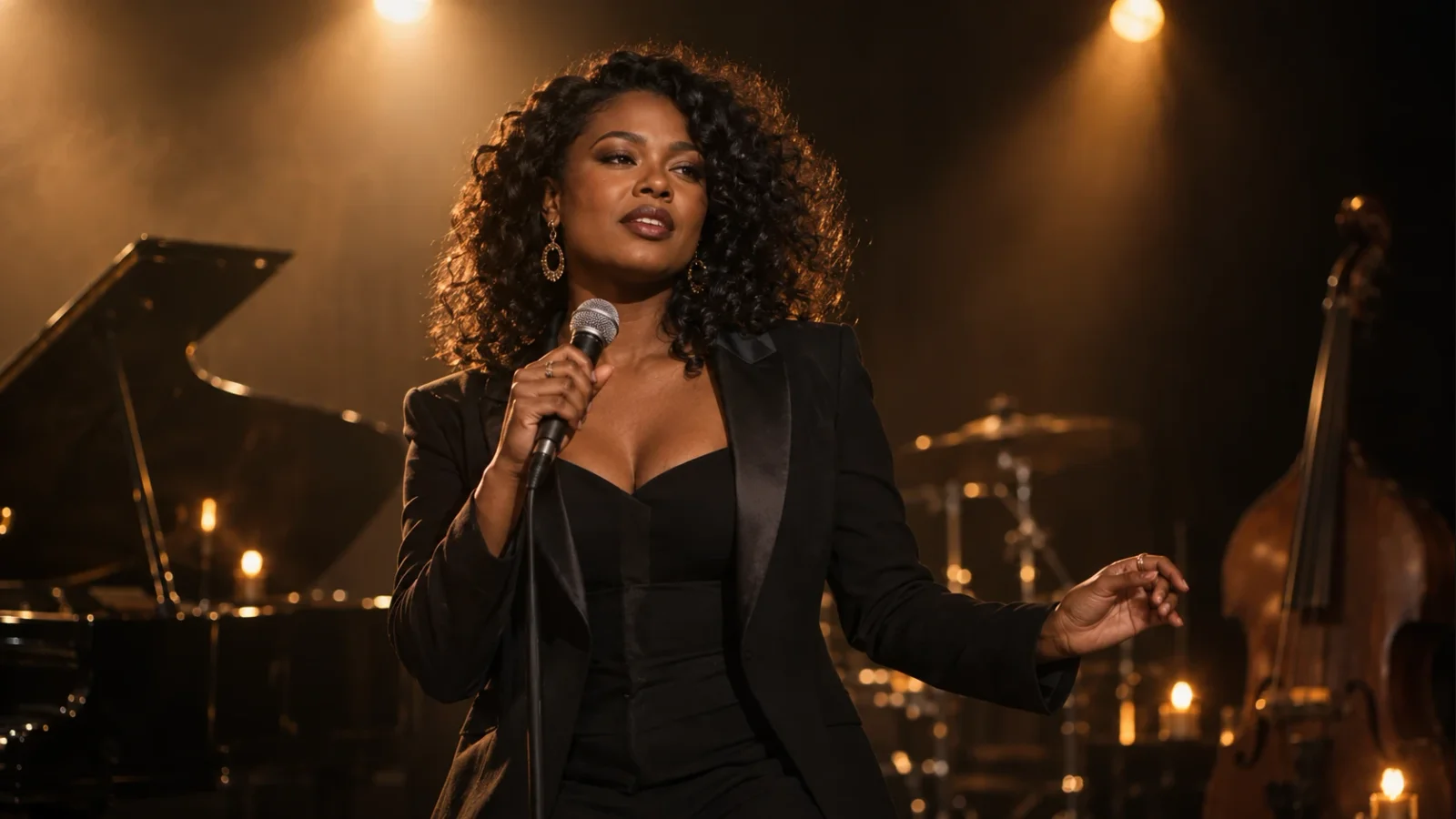
Our two examples intentionally use different fictional performers as alternative visuals for the same test audio. They are not presented as two camera angles of one person.
4. Upload a short excerpt and inspect the quote
Open Make Photo Sing. Upload the performer image, choose the audio route, and load the exact excerpt. Replay it to confirm that the first syllable is present. Use the audio trimmer when you need a shorter test, and retain your source offsets separately.
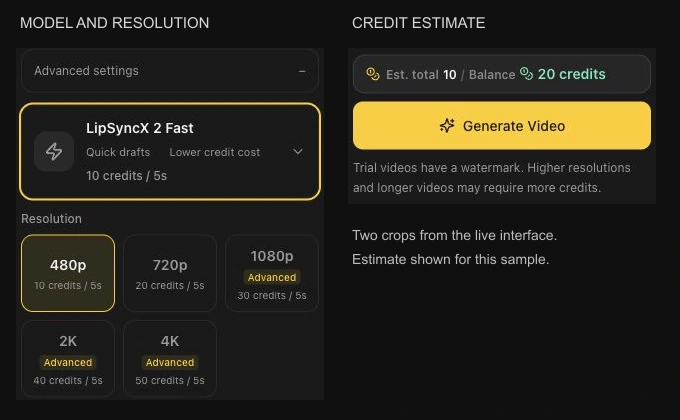
Our performance tests use LipSyncX 2 Fast at 480p. Check the active model, resolution, and credit estimate for your job before generation, and use current pricing to plan alternatives. A fresh take can consume credits even if you intend to discard it later.
Generate one short performance shot before committing to the rest of the song. Dense backing vocals, fast consonants, and covered mouths can make timing and shape harder to judge.
5. Compare the two original test takes
Stage performer test · Alternative performer test · Original test audio
These clips use the same original audio from its beginning, so both have a source offset of 0 seconds. The clips are alternative visual tests, not a finished montage. Listen for lip closures and vowels, then check the complete output for facial distortion and clipped endings.
6. Place each clip against the master track
Import the master audio once and keep it as the main timeline reference. Place each generated clip at its logged master start time. Mute the generated clip's duplicate audio after using it to check alignment; otherwise the two copies may produce an echo.
For an alternative take, replace the picture over the same time range while leaving the master audio fixed. Do not time-stretch the generated performance to fill a different section. If the phrase is wrong, create a correctly trimmed input and regenerate it.
At the final review, listen across every cut and watch the mouth just before and after it. Add titles, B-roll, and transitions in the editor. For a broader scene workflow, see the AI music video generator, whose input requirements differ from a simple still-image performance shot.
FAQ
Can I use a song made in another music tool?
Use a recording you have rights to publish, export the final audio, and keep exact source timecodes. The process does not require that the song came from any particular generator.
Should I upload the whole track for every shot?
Short excerpts make it easier to review one phrase and control editing offsets. Check the active model's limits before generating longer sections.
Will two unrelated portraits look like the same singer?
No identity guarantee is implied. Use consistent authorized source images for one performer, or clearly treat different characters as different performers.
For a first single-shot workflow, see make a photo sing with your own audio. Prepare one timecoded excerpt and test its performance shot.