
Can I Make a Photo Lip Sync to Audio Online?
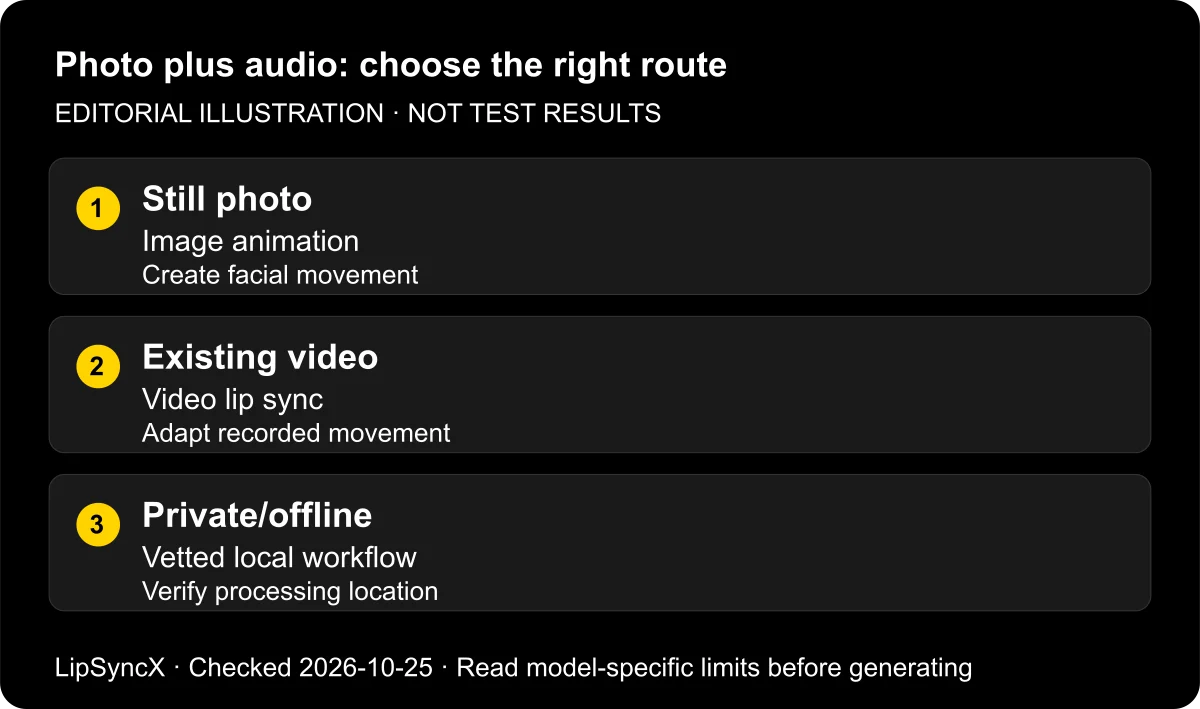
Yes. You can make a photo lip sync to audio online if the service accepts a still image and your audio file. You upload both, generate facial motion, and review a talking video in the browser. A tool that only changes the voice in existing footage may require video instead.
Checked: October 25, 2026. We reviewed official product documentation and reused an original LipSyncX example created on October 22. That example demonstrates one cartoon portrait and spoken line; it does not establish a winner across tools.
Disclosure: LipSyncX publishes this guide and sells a related generation service. Recommendations below distinguish documented capability from observed output.
What does photo lip sync actually create?
A photograph has no recorded mouth movement. A photo-animation model must invent the intervening frames: opening the jaw, closing the lips, and often moving the eyes or head. The audio supplies timing, while the image supplies the starting appearance.
Existing-video lip sync has a different starting point. It changes facial movement in footage that already has a performance, camera angle, and background. Replacing an English voiceover with a Spanish recording in a filmed interview is a footage task. Making a portrait deliver its first sentence is an image task.
This distinction explains a common failure before generation even begins: a website calls itself a lip-sync service, but its uploader asks for MP4 rather than JPG. Check accepted inputs before creating an account or buying credits.
A browser workflow can animate one photo to uploaded audio, but image-input support must be verified for the selected tool and model; support for video dubbing alone is insufficient.

This diagram explains the two routes. It is an editorial illustration, not a screenshot or measured output.
Which online route fits your source material?
The following map describes jobs rather than an overall ranking. Official pages were checked on October 25, 2026; available models and account access can change.
| Your starting material | Route to look for | Check before paying |
|---|---|---|
| One portrait and a finished recording | Image-to-talking-video | Still-image upload, audio upload, model availability |
| One portrait and written words | Photo avatar with text-to-speech | Voice preview, pronunciation, generated-audio rights |
| An interview and replacement narration | Existing-video lip sync | Video input, speaker handling, timing controls |
| An illustrated mascot | Character-compatible image animation | Model-specific examples and short-test quality |
| Confidential media that cannot leave a device | A vetted local workflow | Offline processing, dependencies, license, hardware |
HeyGen's lip-sync tool page documents both photo and footage routes. Sync's image-to-video guide describes still-image generation through sync-3. These are vendor capability statements, not independent measurements of quality.
Within LipSyncX, the talking-photo generator is the relevant starting point for an image. Use the video-dubbing page when you already have footage that must retain its original performance.
Follow four steps for the first attempt
1. Prepare one permitted face
Choose a clear, front-facing portrait with the mouth visible. A hand, microphone, mask, or heavy shadow across the lips adds ambiguity. Crop a busy group photograph to the intended person if the tool lacks explicit subject selection.
Use your own portrait, licensed artwork, or an image whose owner and subject have permitted this use. A photo being publicly visible does not establish permission to animate it. For a workplace presenter, get the relevant approval before uploading an employee's face.
2. Prepare a short, audible recording
Start with 5–10 seconds of one speaker. This is our suggested pilot length, not a platform limit. Include the beginning and end of the sentence and listen for clipping, room echo, and long empty sections.
Use an exported file rather than a streaming link unless the uploader explicitly supports that link. Keep the original recording unchanged so you can compare another model using exactly the same material.
3. Upload, inspect, then generate
Load the image and choose uploaded Audio when you want the existing recording preserved. A Text field usually creates a different audio track; it is not a substitute for uploading your performance.
Check the filename, playback, selected model, output size, and displayed cost. Replace any default sample audio. If a preview still plays the demo voice, the intended recording has not been confirmed.
4. Review the saved video
Play with sound at normal speed before inspecting individual frames. Look at sentence starts, lip closures, pauses, and the final word. Then download the file and play that file separately: the in-app preview alone does not confirm a usable delivery asset.
For annotated input controls and an export checklist, continue with photo-and-audio tutorial.
What does our existing example prove?
Our original fictional fox, Kit, was animated on October 22, 2026 using LipSyncX 2 Fast at 480p. The generation receipt records a 3.682993-second, 480 × 480 video with an audio track. The artwork and synthetic welcome narration were created for LipSyncX, rather than taken from customer material.
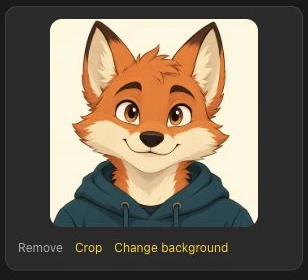
Play the original Kit welcome clip and compare it with the input audio. This is a reusable example of one completed generation. The shorter duration means it does not fulfill a new 5–10-second comparison test.
A second historical test meets the suggested ten-second pilot length. On October 12, LipSyncX 2.0 Pro and Lip-Sync.ai Singing 1.0 generated from the same Mona Lisa portrait and identical vocal WAV. We re-probed both saved outputs on October 25: each is 10.000 seconds at 25 fps. Their actual dimensions differ, 784 × 1152 and 512 × 752, so they should not be treated as equivalent model tiers.
Play the ten-second LipSyncX result, play the Lip-Sync.ai result, and hear their shared audio. The portrait photograph and recording are marked CC0. This AI demonstration is not an authentic performance or endorsement.

Earlier five-second instrumental-only attempts were excluded from singing evaluation. The corrected input contains vocals and accompaniment; automatic transcript timing is not a manual synchronization score.
It cannot prove that every photograph works, that the tool preserves all identity detail, or that its timing beats another service. We did not run a new quality benchmark for this article; the historical paired outputs are available for inspection without an overall winner. For a new project, use a permitted portrait and identical short recording across candidate services, preserving each export and its settings.
When will the result fail or disappoint?
A small face leaves little visible mouth detail. Enlarging it after generation cannot reconstruct a convincing performance that was never produced. Prefer an image with usable facial detail before spending on a higher-resolution export.
Audio can also be audible to a person yet difficult to map to one mouth. Overlapping speakers, backing vocals, dense music, and noisy recordings should be tested separately. A model may accept an audio file without producing appropriate facial motion throughout it.
Generated head motion can introduce a different problem: the face resembles the input at the start but changes while speaking. That is an identity-stability issue, not simply timing. For a brand spokesperson, reject an output that changes distinctive features even if the words seem synchronized.
| Symptom | First change to try |
|---|---|
| Mouth hidden or barely visible | Use a closer, unobstructed portrait |
| Mouth moves during silence | Remove irrelevant audio and retest the same interval |
| Multiple people appear to speak | Isolate one face or choose documented subject selection |
| Character looks distorted | Try a compatible model or a simpler character design |
| Preview works but download fails | Check export entitlement and play the saved file |
See lip-sync troubleshooting guide before buying repeated generations with unchanged inputs.
Does online mean no installation or no upload?
Usually, browser generation avoids installing a dedicated editor. It still requires uploading media to the provider unless the service explicitly documents local processing. Opening a site in a private browser window does not make server-side generation local.
A self-hosted system can also be accessed through a browser, but someone must install and maintain the backend. Calling it online describes the interface, not who operates the infrastructure. Readers needing offline processing should investigate that requirement independently.
Before using a sensitive face or voice, check deletion controls, retention, training language, and organization approval. For a disposable feasibility test, original fictional artwork and your own short recording reduce the amount of personal material involved.
FAQ
Can I make a photo lip sync to audio online for free?
Some services offer a trial. Check the current allowance, watermark, export access, and permitted uses in your account. A free preview does not establish that a downloadable commercial video is included.
Can I use my phone instead of a computer?
Often, through a mobile app or compatible browser. File selection, model access, and exporting may differ. Read the browser talking-photo workspace before moving a large project onto mobile.
Can I use a singing recording?
Choose a service that documents singing support and test one clear vocal passage first. A full song with multiple singers is a harder task than one spoken sentence.
Will the video recreate the person's real expressions?
No photograph records how that person would perform the sentence. Generated expressions are an interpretation. Do not present the result as authentic footage of someone saying those words.
Make the first test small enough to judge
Open the talking-photo generator, load one permitted portrait, and upload one short line. Save the image, audio, output, and settings together. Return to the AI lip-sync guide hub to compare the next decision after reviewing that clip.
Changelog: October 25, 2026 — official browser and image-input documentation checked; October 22 example reused with its actual duration; no new cross-tool benchmark claimed.